# JETSON ORIN NANO 进阶教程

本章主要Jetson特色的AI功能使用

# 新页面


# 安装jtop

jtop 是英伟达专为 ​**​Jetson 系列边缘计算设备​**​开发的​**​交互式系统监控工具。**

##### 1 安装jtop

- 安装jtop需要的依赖库

```bash
sudo apt update
sudo apt install python3
sudo apt install python3-pip
```

- 安装jtop

```
sudo pip3 install -U pip -i https://pypi.tuna.tsinghua.edu.cn/simple
sudo pip3 install jetson-stats -i https://pypi.tuna.tsinghua.edu.cn/simple
sudo systemctl restart jtop.service
```

##### 2 jtop的使用

- 安装完成后在控制台中输入`jtop`打开主界面

[![image.png](https://www.linkzeelabs.com/wiki/uploads/images/gallery/2025-07/scaled-1680-/YiKimage.png)](https://www.linkzeelabs.com/wiki/uploads/images/gallery/2025-07/YiKimage.png)

2.1 监视各个模块的工作信息

2.2 控制风扇

[![1.png](https://www.linkzeelabs.com/wiki/uploads/images/gallery/2025-07/scaled-1680-/x711.png)](https://www.linkzeelabs.com/wiki/uploads/images/gallery/2025-07/x711.png)

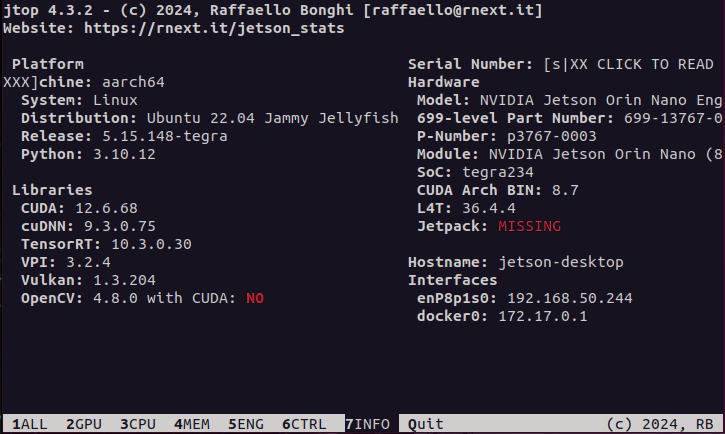
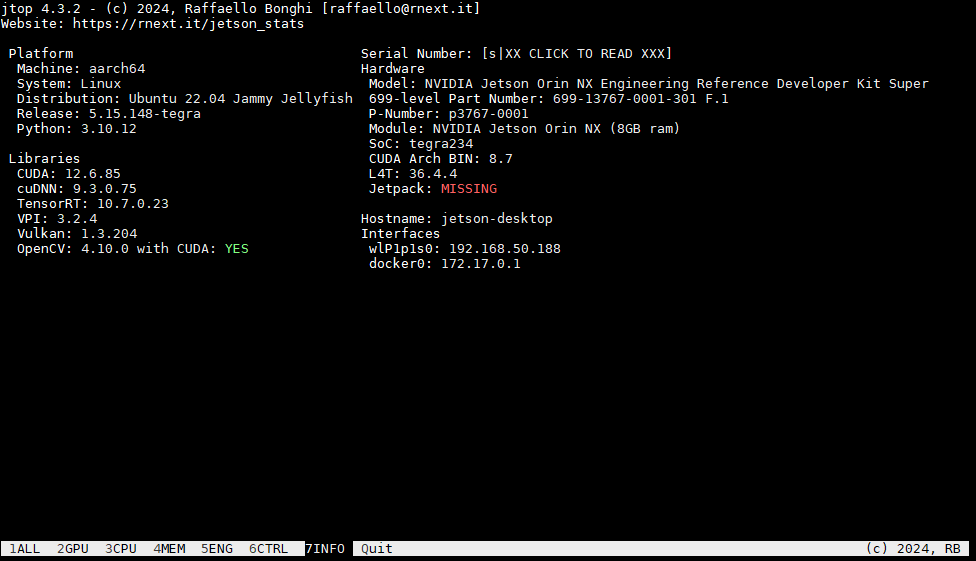
2.3 查看内置软件信息

[![image.png](https://www.linkzeelabs.com/wiki/uploads/images/gallery/2025-07/scaled-1680-/L3Timage.png)](https://www.linkzeelabs.com/wiki/uploads/images/gallery/2025-07/L3Timage.png)

# 安装CUDA

**Jetson** **CUDA**是NVIDIA为边缘AI设计的并行计算平台，基于ARM的Jetson系列硬件，支持**GPU加速**深度学习与**实时推理**，低**功耗高性能**。

##### 安装CUDA JETSON SDK

```
sudo apt update
sudo apt install nvidia-jetpack
```

[![image.png](https://www.linkzeelabs.com/wiki/uploads/images/gallery/2025-07/scaled-1680-/rUKimage.png)](https://www.linkzeelabs.com/wiki/uploads/images/gallery/2025-07/rUKimage.png)

##### 对开发板进行压力测试

<p class="callout info">以下测试仅在 **JetPack** **6.1 (rev1)** 和 **JetPack 5.1.5** 版本中通过验证</p>

调整功耗上限：

```bash
sudo nvpmodel -m 2 #nano 模式2为super
sudo jetson_clocks --fan
```

cpu压力测试：

```bash
sudo apt install stress
stress --cpu 8 --io 4 --vm 2 --vm-bytes 128M --hdd 1 --hdd-bytes 1024M
```

  
gpu压力测试：

```bash
git clone https://github.com/anseeto/jetson-gpu-burn/
cd jetson-gpu-burn
make
./gpu_burn 100000
```

状态查询：

```bash
sudo jtop
```

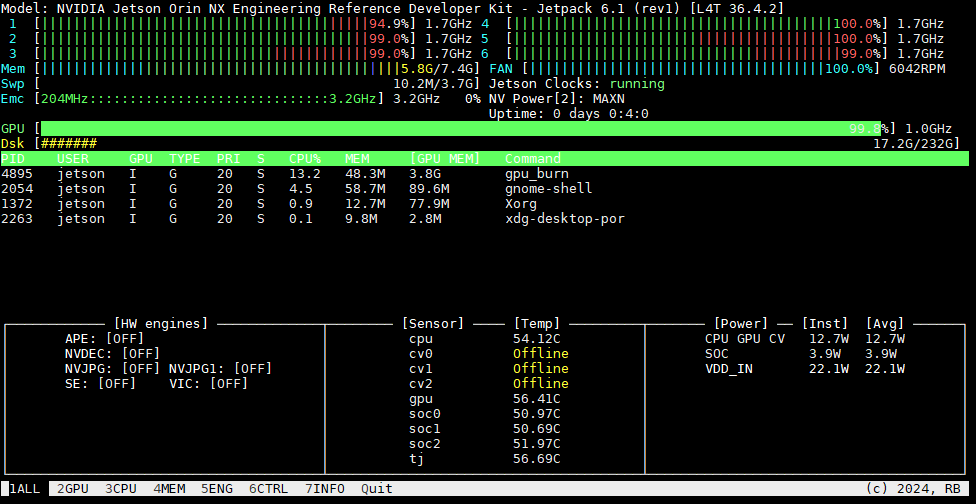
[![image.png](https://www.linkzeelabs.com/wiki/uploads/images/gallery/2025-07/scaled-1680-/f1dimage.png)](https://www.linkzeelabs.com/wiki/uploads/images/gallery/2025-07/f1dimage.png)

> Orin Nano 整机最大功率为**30W.**
> 
> Orin NX 整机最大功率为**40W**.

# 编译安装opencv with cuda

<p class="callout info">JetPack预装的opencv没有启用cuda，需要自行编译安装。</p>

[![image.png](https://www.linkzeelabs.com/wiki/uploads/images/gallery/2025-07/scaled-1680-/g2Timage.png)](https://www.linkzeelabs.com/wiki/uploads/images/gallery/2025-07/g2Timage.png)

#### 1. 脚本一键安装

```bash
#!/bin/bash
# opencv_install.sh
# Modified from https://github.com/AastaNV/JEP/blob/master/script/install_opencv4.10.0_Jetpack6.1.sh

version="4.10.0"
folder="workspace"
remove_old=""

set -e

# Parse command-line arguments
for arg in "$@"; do
    case $arg in
        --version=*)
            version="${arg#*=}"
            ;;
        --folder=*)
            folder="${arg#*=}"
            ;;
        --remove-old=*)
            remove_old="${arg#*=}"
            ;;
        --help|-h)
            echo "Usage: $0 [--version=4.x.x] [--folder=dir] [--remove-old=yes/no]"
            exit 0
            ;;
        *)
            echo "Unknown parameter: $arg"
            echo "Usage: $0 [--version=4.x.x] [--folder=dir] [--remove-old=yes/no]"
            exit 1
            ;;
    esac
done

# Create installation directory if it doesn't exist
if [ ! -d "$folder" ]; then
    echo "Creating directory: $folder"
    mkdir -p "$folder"
fi
cd "$folder" || exit

# Old OpenCV removal logic
if [ -z "$remove_old" ]; then
    read -rp "Do you want to remove system-installed OpenCV? (yes/no): " remove_old
fi

case "$remove_old" in
    [yY] | [yY][eE][sS])
        echo "** Removing system OpenCV packages"
        sudo apt -y purge *libopencv*
        sudo apt -y autoremove
        ;;
    *)
        echo "** Skipping system OpenCV removal"
        ;;
esac

echo "------------------------------------"
echo "** Installing dependencies (1/4)"
echo "------------------------------------"
sudo apt-get update
sudo apt-get install -y build-essential cmake git libgtk2.0-dev pkg-config \
    libavcodec-dev libavformat-dev libswscale-dev libgstreamer1.0-dev \
    libgstreamer-plugins-base1.0-dev python3-dev python3-numpy libtbb2 \
    libtbb-dev libjpeg-dev libpng-dev libtiff-dev libv4l-dev v4l-utils qv4l2 curl

# Verify essential dependencies installed
for dep in g++ cmake git pkg-config; do
    if ! command -v "$dep" > /dev/null; then
        echo "Error: $dep installation failed"
        exit 1
    fi
done

echo "------------------------------------"
echo "** Downloading OpenCV ${version} (2/4)"
echo "------------------------------------"

# Check if source files already exist
download_opencv=false
download_contrib=false

if [ ! -f "opencv-${version}.zip" ]; then
    echo "Downloading opencv-${version}.zip"
    wget -O opencv-${version}.zip https://github.com/opencv/opencv/archive/${version}.zip || {
        echo "Download failed! Check your internet connection or verify the version exists"
        exit 1
    }
    download_opencv=true
else
    echo "opencv-${version}.zip exists, skipping download"
fi

if [ ! -f "opencv_contrib-${version}.zip" ]; then
    echo "Downloading opencv_contrib-${version}.zip"
    wget -O opencv_contrib-${version}.zip https://github.com/opencv/opencv_contrib/archive/${version}.zip || {
        echo "Download failed! Check your internet connection or verify the version exists"
        exit 1
    }
    download_contrib=true
else
    echo "opencv_contrib-${version}.zip exists, skipping download"
fi

# Unpack source files
if [ ! -d "opencv-${version}" ] || $download_opencv; then
    if [ -d "opencv-${version}" ]; then
        echo "Removing existing opencv-${version} directory"
        rm -rf "opencv-${version}"
    fi
    echo "Unpacking opencv-${version}.zip"
    unzip -q opencv-${version}.zip || {
        echo "Extraction failed! File may be corrupt"
        exit 1
    }
fi

if [ ! -d "opencv_contrib-${version}" ] || $download_contrib; then
    if [ -d "opencv_contrib-${version}" ]; then
        echo "Removing existing opencv_contrib-${version} directory"
        rm -rf "opencv_contrib-${version}"
    fi
    echo "Unpacking opencv_contrib-${version}.zip"
    unzip -q opencv_contrib-${version}.zip || {
        echo "Extraction failed! File may be corrupt"
        exit 1
    }
fi

# Clean up zip files after successful extraction
if [ $? -eq 0 ]; then
    rm -f opencv-${version}.zip opencv_contrib-${version}.zip
fi

cd opencv-${version} || exit

echo "------------------------------------"
echo "** Building OpenCV ${version} (3/4)"
echo "------------------------------------"
mkdir -p release
cd release

# Auto-detect CUDA architecture
cuda_arch=""
if command -v nvidia-smi &> /dev/null; then
    gpu_name=$(nvidia-smi --query-gpu=name --format=csv,noheader | head -n1)
    if [[ $gpu_name == *"Orin"* ]] || [[ $gpu_name == *"Jetson"* ]]; then
        cuda_arch="8.7"
    elif [[ $gpu_name == *"A100"* ]]; then
        cuda_arch="8.0"
    fi
fi

cmake_cmd="cmake -D WITH_CUDA=ON -D WITH_CUDNN=ON -D OPENCV_GENERATE_PKGCONFIG=ON "
cmake_cmd+="-D OPENCV_EXTRA_MODULES_PATH=../../opencv_contrib-${version}/modules "
cmake_cmd+="-D WITH_GSTREAMER=ON -D WITH_LIBV4L=ON -D BUILD_opencv_python3=ON "
cmake_cmd+="-D BUILD_TESTS=OFF -D BUILD_PERF_TESTS=OFF -D BUILD_EXAMPLES=OFF "
cmake_cmd+="-D CMAKE_BUILD_TYPE=RELEASE -D CMAKE_INSTALL_PREFIX=/usr/local "

# Add CUDA architecture if detected
if [ -n "$cuda_arch" ]; then
    echo "Detected NVIDIA GPU: ${gpu_name}, using CUDA_ARCH_BIN=${cuda_arch}"
    cmake_cmd+="-D CUDA_ARCH_BIN=${cuda_arch} -D CUDA_ARCH_PTX=\"\" "
else
    echo "No supported GPU detected, skipping CUDA architecture flags"
fi

# Execute CMake configuration
echo "CMake command: $cmake_cmd .."
$cmake_cmd .. || {
    echo "CMake configuration failed"
    exit 1
}

# Parallel build (leave one core for system stability)
cpu_cores=$(($(nproc) - 1))
[ $cpu_cores -lt 1 ] && cpu_cores=1
echo "Building with ${cpu_cores} CPU cores"
make -j${cpu_cores} || {
    echo "Compilation failed"
    exit 1
}

echo "------------------------------------"
echo "** Installing OpenCV ${version} (4/4)"
echo "------------------------------------"
sudo make install || {
    echo "Installation failed"
    exit 1
}

# Add environment variables to .bashrc (only if not already present)
bashrc=~/.bashrc
env_lines=(
    "export LD_LIBRARY_PATH=/usr/local/lib:\$LD_LIBRARY_PATH"
    "export PYTHONPATH=/usr/local/lib/python3.10/site-packages/:\$PYTHONPATH"
)

for line in "${env_lines[@]}"; do
    if ! grep -Fxq "$line" "$bashrc"; then
        echo "Adding to .bashrc: $line"
        echo "$line" >> "$bashrc"
    else
        echo "Environment variable already exists: $line"
    fi
done

source ~/.bashrc

echo "** OpenCV ${version} installation completed"
echo "Verification commands:"
echo "  pkg-config --modversion opencv4"
echo "  python3 -c 'import cv2; print(cv2.__version__)'"

echo "** Installation successful!"
```

<div id="bkmrk--2"></div>#### 2. 手动安装

2.1 卸载自带opencv

```bash
sudo apt-get purge libopencv*
sudo apt autoremove
sudo apt-get update
```

2.2 安装前置软件包

```bash
sudo apt-get update
sudo apt-get install -y build-essential cmake git libgtk2.0-dev pkg-config libavcodec-dev libavformat-dev libswscale-dev
sudo apt-get install -y libgstreamer1.0-dev libgstreamer-plugins-base1.0-dev python3.10-dev python3-numpy
sudo apt-get install -y libtbb2 libtbb-dev libjpeg-dev libpng-dev libtiff-dev libv4l-dev v4l-utils qv4l2
sudo apt-get install -y curl
```

2.3 获取opencv源码(以4.10.0版本为例)

```bash
version=4.10.0
wget -O "opencv-${version}.zip" "https://github.com/opencv/opencv/archive/${version}.zip"
wget -O "opencv_contrib-${version}.zip" "https://github.com/opencv/opencv_contrib/archive/${version}.zip"
unzip "opencv-${version}.zip"
unzip "opencv_contrib-${version}.zip"
rm "opencv-${version}.zip" "opencv_contrib-${version}.zip"
cd "opencv-${version}/"
```

2.4 编译源码

<p class="callout info">此步骤至少需要半小时以上。</p>

<p class="callout info">中途可能会下载第三方软件包，建议提前确认网络环境。</p>

```bash
mkdir build
cd build/
cmake -D WITH_CUDA=ON -D WITH_CUDNN=ON -D CUDA_ARCH_BIN="8.7" -D CUDA_ARCH_PTX="" -D OPENCV_GENERATE_PKGCONFIG=ON -D OPENCV_EXTRA_MODULES_PATH=../../opencv_contrib-${version}/modules -D WITH_GSTREAMER=ON -D WITH_LIBV4L=ON -D BUILD_opencv_python3=ON -D BUILD_TESTS=OFF -D BUILD_PERF_TESTS=OFF -D BUILD_EXAMPLES=OFF -D CMAKE_BUILD_TYPE=RELEASE -D CMAKE_INSTALL_PREFIX=/usr/local ..
make -j$(nproc)
```

2.5 安装

```bash
sudo make install
echo 'export LD_LIBRARY_PATH=/usr/local/lib:$LD_LIBRARY_PATH' >> ~/.bashrc
echo 'export PYTHONPATH=/usr/local/lib/python3.10/site-packages/:$PYTHONPATH' >> ~/.bashrc
source ~/.bashrc
```

#### 三、验证测试

[![image.png](https://www.linkzeelabs.com/wiki/uploads/images/gallery/2025-07/scaled-1680-/bA0image.png)](https://www.linkzeelabs.com/wiki/uploads/images/gallery/2025-07/bA0image.png)
```c++
#--test_cuda.cpp

#include <opencv2/opencv.hpp>
#include <opencv2/core/cuda.hpp>
#include <opencv2/cudaarithm.hpp>
#include <iostream>
#include <chrono>

// CPU 矩阵乘法
void cpu_matrix_mult(cv::Mat& a, cv::Mat& b, cv::Mat& result) {
    for (int i = 0; i < 50; i++) {
        result = a * b;
    }
}

// GPU 矩阵乘法
void gpu_matrix_mult(cv::cuda::GpuMat& d_a, cv::cuda::GpuMat& d_b, cv::cuda::GpuMat& d_result) {
    cv::cuda::Stream stream;
    
    for (int i = 0; i < 50; i++) {
        cv::cuda::gemm(d_a, d_b, 1.0, cv::cuda::GpuMat(), 0, d_result, 0, stream);
        stream.waitForCompletion();
    }
}

int main() {
    try {
        std::cout << "--- OpenCV CUDA Matrix Multiplication Test ---\n";
        
        // 创建两个 1000x1000 的随机矩阵
        cv::Mat mat_a(1000, 1000, CV_32FC1);
        cv::Mat mat_b(1000, 1000, CV_32FC1);
        cv::randu(mat_a, 0.0f, 1.0f);
        cv::randu(mat_b, 0.0f, 1.0f);
        
        cv::Mat cpu_result;
        
        // CPU 测试
        auto start_cpu = std::chrono::high_resolution_clock::now();
        cpu_matrix_mult(mat_a, mat_b, cpu_result);
        auto end_cpu = std::chrono::high_resolution_clock::now();
        double cpu_time = std::chrono::duration_cast<std::chrono::milliseconds>(end_cpu - start_cpu).count();
        
        // GPU 测试
        cv::cuda::GpuMat d_mat_a, d_mat_b, d_result;
        d_mat_a.upload(mat_a);
        d_mat_b.upload(mat_b);
        
        auto start_gpu = std::chrono::high_resolution_clock::now();
        gpu_matrix_mult(d_mat_a, d_mat_b, d_result);
        auto end_gpu = std::chrono::high_resolution_clock::now();
        double gpu_time = std::chrono::duration_cast<std::chrono::milliseconds>(end_gpu - start_gpu).count();
        
        // 下载结果进行验证
        cv::Mat gpu_result;
        d_result.download(gpu_result);
        
        // 计算误差(一般为空)
        double diff = cv::norm(cpu_result, gpu_result, cv::NORM_L2);
        std::cout << "Result difference: " << diff << "\n";
        
        std::cout << "Performance Results:\n"
                  << " - CPU time: " << cpu_time << " ms\n"
                  << " - GPU time: " << gpu_time << " ms\n"
                  << " - Speedup: " << cpu_time / gpu_time << "x\n";
        
        std::cout << "\n✅ CUDA matrix multiplication test completed\n";
        return 0;
        
    } catch (const cv::Exception& e) {
        std::cerr << "OpenCV Error (" << e.err << "): " << e.what() << "\n";
        return -1;
    } catch (const std::exception& e) {
        std::cerr << "Standard Error: " << e.what() << "\n";
        return -2;
    }
}
```

编译运行

```bash
jetson@jetson-desktop:~/work$ g++ test_cuda.cpp -o test_cuda `pkg-config --cflags --libs opencv4`
jetson@jetson-desktop:~/work$ ./test_cuda
--- OpenCV CUDA Performance Test ---
Performance Results:
 - CPU time: 2451 ms
 - GPU time: 918 ms
 - Speedup: 2.66993x

✅ CUDA performance test completed

```

# 安装使用pytorch和torchvision

​​**PyTorch** 是 Python 中最流行、最易用的深度学习框架之一。它让开发者能够像操作普通 Python 代码一样，直观、灵活地设计和训练复杂的神经网络模型。其简洁的 API 设计和强大的 GPU 加速支持，使得从研究想法到实际部署的开发过程都极其高效便捷，广受开发者青睐。​

NVIDIA 为 Jetson 系列设备专门适配了对应的软件包，其版本依赖关系如下：

<table class="BookContent-table" id="bkmrk-pytorch-version-nvid"><thead><tr><th class="entry" colspan="1" id="bkmrk-pytorch-version" rowspan="1" valign="top" width="25%">PyTorch Version</th><th class="entry" colspan="1" id="bkmrk-nvidia-framework%C2%A0con" rowspan="1" valign="top" width="25%">NVIDIA Framework [Container](https://catalog.ngc.nvidia.com/orgs/nvidia/containers/pytorch)</th><th class="entry" colspan="1" id="bkmrk-nvidia-framework%C2%A0whe" rowspan="1" valign="top" width="25%">NVIDIA Framework [Wheel](https://developer.download.nvidia.com/compute/redist/jp/)</th><th class="entry" colspan="1" id="bkmrk-jetpack-version" rowspan="1" valign="top" width="25%">JetPack Version</th></tr></thead><tbody><tr><td class="entry" colspan="1" headers="d560e78" rowspan="1" valign="top" width="25%">[<u class="ph u">2.8.0a0+5228986c39</u>](https://github.com/pytorch/pytorch/commit/5228986c395dc79f90d2a2b991deea1eef188260)</td><td class="entry" colspan="1" headers="d560e81" rowspan="1" valign="top" width="25%">25.06</td><td class="entry" colspan="1" headers="d560e86" rowspan="1" valign="top" width="25%">-</td><td class="entry" colspan="1" headers="d560e91" rowspan="1" valign="top" width="25%">6.2</td></tr><tr><td class="entry" colspan="1" headers="d560e78" rowspan="1" valign="top" width="25%">[<u class="ph u">2.8.0a0+5228986c39</u>](https://github.com/pytorch/pytorch/commit/5228986c395dc79f90d2a2b991deea1eef188260)</td><td class="entry" colspan="1" headers="d560e81" rowspan="1" valign="top" width="25%">25.05</td><td class="entry" colspan="1" headers="d560e86" rowspan="1" valign="top" width="25%">-</td><td class="entry" colspan="1" headers="d560e91" rowspan="1" valign="top" width="25%">6.2</td></tr><tr><td class="entry" colspan="1" headers="d560e78" rowspan="1" valign="top" width="25%">[<u class="ph u">2.7.0a0+79aa17489c</u>](https://github.com/pytorch/pytorch/commit/79aa17489c3fc5ed6d5e972e9ffddf73e6dd0a5c)</td><td class="entry" colspan="1" headers="d560e81" rowspan="1" valign="top" width="25%">25.04</td><td class="entry" colspan="1" headers="d560e86" rowspan="1" valign="top" width="25%">-</td><td class="entry" colspan="1" headers="d560e91" rowspan="1" valign="top" width="25%">6.2</td></tr><tr><td class="entry" colspan="1" headers="d560e78" rowspan="1" valign="top" width="25%">[<u class="ph u">2.7.0a0+7c8ec84dab</u>](https://github.com/pytorch/pytorch/commit/7c8ec84dab7dc10d4ef90afc93a49b97bbd04503)</td><td class="entry" colspan="1" headers="d560e81" rowspan="1" valign="top" width="25%">25.03</td><td class="entry" colspan="1" headers="d560e86" rowspan="1" valign="top" width="25%">-</td><td class="entry" colspan="1" headers="d560e91" rowspan="1" valign="top" width="25%">6.2</td></tr><tr><td class="entry" colspan="1" headers="d560e78" rowspan="1" valign="top" width="25%">[<u class="ph u">2.7.0a0+6c54963f75</u>](https://github.com/pytorch/pytorch/commit/6c54963f75e9dfdae34c44f71081b5d3972b6b8d)</td><td class="entry" colspan="1" headers="d560e81" rowspan="1" valign="top" width="25%">25.02</td><td class="entry" colspan="1" headers="d560e86" rowspan="1" valign="top" width="25%">-</td><td class="entry" colspan="1" headers="d560e91" rowspan="1" valign="top" width="25%">6.2</td></tr><tr><td class="entry" colspan="1" headers="d560e78" rowspan="1" valign="top" width="25%">[<u class="ph u">2.6.0a0+ecf3bae40a</u>](https://github.com/pytorch/pytorch/commit/ecf3bae40a6f2f0f3b237bde1fc4b2492765ab13)</td><td class="entry" colspan="1" headers="d560e81" rowspan="1" valign="top" width="25%">25.01</td><td class="entry" colspan="1" headers="d560e86" rowspan="1" valign="top" width="25%">-</td><td class="entry" colspan="1" headers="d560e91" rowspan="1" valign="top" width="25%">6.1</td></tr><tr><td class="entry" colspan="1" headers="d560e78" rowspan="1" valign="top" width="25%">[<u class="ph u">2.6.0a0+df5bbc09d1</u>](https://github.com/pytorch/pytorch/commit/df5bbc09d191fff3bdb592c184176e84669a7157)</td><td class="entry" colspan="1" headers="d560e81" rowspan="1" valign="top" width="25%">24.12</td><td class="entry" colspan="1" headers="d560e86" rowspan="1" valign="top" width="25%">-</td><td class="entry" colspan="1" headers="d560e91" rowspan="1" valign="top" width="25%">6.1</td></tr><tr><td class="entry" colspan="1" headers="d560e78" rowspan="1" valign="top" width="25%">[<u class="ph u">2.6.0a0+df5bbc0</u>](https://github.com/pytorch/pytorch/commit/df5bbc09d191fff3bdb592c184176e84669a7157)</td><td class="entry" colspan="1" headers="d560e81" rowspan="1" valign="top" width="25%">24.11</td><td class="entry" colspan="1" headers="d560e86" rowspan="1" valign="top" width="25%">-</td><td class="entry" colspan="1" headers="d560e91" rowspan="1" valign="top" width="25%">6.1</td></tr><tr><td class="entry" colspan="1" headers="d560e78" rowspan="1" valign="top" width="25%">[<u class="ph u">2.5.0a0+e000cf0ad9</u>](https://github.com/pytorch/pytorch/commit/e000cf0ad980e5d140dc895a646174e9b945cf26)</td><td class="entry" colspan="1" headers="d560e81" rowspan="1" valign="top" width="25%">24.10</td><td class="entry" colspan="1" headers="d560e86" rowspan="1" valign="top" width="25%">-</td><td class="entry" colspan="1" headers="d560e91" rowspan="1" valign="top" width="25%">6.1</td></tr><tr><td class="entry" colspan="1" headers="d560e78" rowspan="1" valign="top" width="25%">[<u class="ph u">2.5.0a0+b465a5843b</u>](https://github.com/pytorch/pytorch/commit/b465a5843b92f33fe3e89ff7ee91c6833df6aec0)</td><td class="entry" colspan="1" headers="d560e81" rowspan="1" valign="top" width="25%">24.09</td><td class="entry" colspan="1" headers="d560e86" rowspan="1" valign="top" width="25%">24.09</td><td class="entry" colspan="1" headers="d560e91" rowspan="1" valign="top" width="25%">6.1</td></tr><tr><td class="entry" colspan="1" headers="d560e78" rowspan="1" valign="top" width="25%">[<u class="ph u">2.5.0a0+872d972e41</u>](https://github.com/pytorch/pytorch/commit/872d972e41596a9ac94dfd343f40bfc12b340a74)</td><td class="entry" colspan="1" headers="d560e81" rowspan="1" valign="top" width="25%">24.08</td><td class="entry" colspan="1" headers="d560e86" rowspan="1" valign="top" width="25%">-</td><td class="entry" colspan="1" headers="d560e91" rowspan="1" valign="top" width="25%">6.0</td></tr><tr><td class="entry" colspan="1" headers="d560e78" rowspan="1" valign="top" width="25%">[<u class="ph u">2.4.0a0+3bcc3cddb5</u>](https://github.com/pytorch/pytorch/commit/3bcc3cddb580bf0f0f1958cfe27001f236eac2c1)</td><td class="entry" colspan="1" headers="d560e81" rowspan="1" valign="top" width="25%">24.07</td><td class="entry" colspan="1" headers="d560e86" rowspan="1" valign="top" width="25%">24.07</td><td class="entry" colspan="1" headers="d560e91" rowspan="1" valign="top" width="25%">6.0</td></tr><tr><td class="entry" colspan="1" headers="d560e78" rowspan="1" valign="top" width="25%">[<u class="ph u">2.4.0a0+f70bd71a48</u>](https://github.com/pytorch/pytorch/commit/f70bd71a48)</td><td class="entry" colspan="1" headers="d560e81" rowspan="1" valign="top" width="25%">24.06</td><td class="entry" colspan="1" headers="d560e86" rowspan="1" valign="top" width="25%">24.06</td><td class="entry" colspan="1" headers="d560e91" rowspan="1" valign="top" width="25%">6.0</td></tr><tr><td class="entry" colspan="1" headers="d560e78" rowspan="1" valign="top" width="25%">[<u class="ph u">2.4.0a0+07cecf4168</u>](https://github.com/pytorch/pytorch/commit/07cecf4168503a5b3defef9b2ecaeb3e075f4761)</td><td class="entry" colspan="1" headers="d560e81" rowspan="1" valign="top" width="25%">24.05</td><td class="entry" colspan="1" headers="d560e86" rowspan="1" valign="top" width="25%">24.05</td><td class="entry" colspan="1" headers="d560e91" rowspan="1" valign="top" width="25%">6.0</td></tr><tr><td class="entry" colspan="1" headers="d560e78" rowspan="1" valign="top" width="25%">[<u class="ph u">2.3.0a0+6ddf5cf85e</u>](https://github.com/pytorch/pytorch/commit/6ddf5cf85e3c27c596175aba7bf5affb5426255f)</td><td class="entry" colspan="1" headers="d560e81" rowspan="1" valign="top" width="25%">24.04</td><td class="entry" colspan="1" headers="d560e86" rowspan="1" valign="top" width="25%">24.04</td><td class="entry" colspan="1" headers="d560e91" rowspan="5" valign="top" width="25%">6.0 Developer Preview</td></tr><tr><td class="entry" colspan="1" headers="d560e78" rowspan="1" valign="top" width="25%">[<u class="ph u">2.3.0a0+40ec155e58</u>](https://github.com/pytorch/pytorch/commit/40ec155e58ee1a1921377ff921b55e61502e4fb3)</td><td class="entry" colspan="1" headers="d560e81" rowspan="1" valign="top" width="25%">24.03</td><td class="entry" colspan="1" headers="d560e86" rowspan="1" valign="top" width="25%">[24.03](https://developer.download.nvidia.com/compute/redist/jp/v60dp/pytorch/torch-2.3.0a0+40ec155e58.nv24.03.13384722-cp310-cp310-linux_aarch64.whl)</td></tr><tr><td class="entry" colspan="1" headers="d560e78" rowspan="1" valign="top" width="25%">[<u class="ph u">2.3.0a0+ebedce2</u>](https://github.com/pytorch/pytorch/commit/ebedce24ab578036dd9257e4928eea9ee38d1192)</td><td class="entry" colspan="1" headers="d560e81" rowspan="1" valign="top" width="25%">24.02</td><td class="entry" colspan="1" headers="d560e86" rowspan="1" valign="top" width="25%">24.02</td></tr><tr><td class="entry" colspan="1" headers="d560e78" rowspan="1" valign="top" width="25%">[<u class="ph u">2.2.0a0+81ea7a4</u>](https://github.com/pytorch/pytorch/commit/81ea7a48)</td><td class="entry" colspan="1" headers="d560e81" rowspan="1" valign="top" width="25%">23.12, 24.01</td><td class="entry" colspan="1" headers="d560e86" rowspan="1" valign="top" width="25%">23.12, 24.01</td></tr><tr><td class="entry" colspan="1" headers="d560e78" rowspan="1" valign="top" width="25%">[<u class="ph u">2.2.0a0+6a974bec</u>](https://github.com/pytorch/pytorch/commit/6a974bec)</td><td class="entry" colspan="1" headers="d560e81" rowspan="1" valign="top" width="25%">23.11</td><td class="entry" colspan="1" headers="d560e86" rowspan="1" valign="top" width="25%">23.11</td></tr><tr><td class="entry" colspan="1" headers="d560e78" rowspan="1" valign="top" width="25%">[<u class="ph u">2.1.0a</u>](https://github.com/pytorch/pytorch/commit/41361538a978eb03fa1e88bf5b8e4410db7a6927)</td><td class="entry" colspan="1" headers="d560e81" rowspan="1" valign="top" width="25%"> </td><td class="entry" colspan="1" headers="d560e86" rowspan="1" valign="top" width="25%">23.06</td><td class="entry" colspan="1" headers="d560e91" rowspan="5" valign="top" width="25%">5.1.x</td></tr><tr><td class="entry" colspan="1" headers="d560e78" rowspan="1" valign="top" width="25%">[<u class="ph u">2.0.0</u>](https://github.com/pytorch/pytorch/tree/v2.0.0)</td><td class="entry" colspan="1" headers="d560e81" rowspan="1" valign="top" width="25%"> </td><td class="entry" colspan="1" headers="d560e86" rowspan="1" valign="top" width="25%">23.05</td></tr><tr><td class="entry" colspan="1" headers="d560e78" rowspan="1" valign="top" width="25%">[<u class="ph u">2.0.0a0+fe05266f</u>](https://github.com/pytorch/pytorch/commit/fe05266fda4f908130dea7cbac37e9264c0429a2)</td><td class="entry" colspan="1" headers="d560e81" rowspan="1" valign="top" width="25%"> </td><td class="entry" colspan="1" headers="d560e86" rowspan="1" valign="top" width="25%">23.04</td></tr><tr><td class="entry" colspan="1" headers="d560e78" rowspan="1" valign="top" width="25%">[<u class="ph u">2.0.0a0+8aa34602</u>](https://github.com/pytorch/pytorch/commit/8aa34602f703896c16ae57f622ff4cb1c86c04dd)</td><td class="entry" colspan="1" headers="d560e81" rowspan="1" valign="top" width="25%"> </td><td class="entry" colspan="1" headers="d560e86" rowspan="1" valign="top" width="25%">23.03</td></tr><tr><td class="entry" colspan="1" headers="d560e78" rowspan="1" valign="top" width="25%">[<u class="ph u">1.14.0a0+44dac51c</u>](https://github.com/pytorch/pytorch/commit/44dac51c36d01f63e64585e5e7a864cb8e37948a)</td><td class="entry" colspan="1" headers="d560e81" rowspan="1" valign="top" width="25%"> </td><td class="entry" colspan="1" headers="d560e86" rowspan="1" valign="top" width="25%">23.02, 23.01</td></tr><tr><td class="entry" colspan="1" headers="d560e78" rowspan="1" valign="top" width="25%">[<u class="ph u">1.13.0a0+936e930</u>](https://github.com/pytorch/pytorch/commit/936e930)</td><td class="entry" colspan="1" headers="d560e81" rowspan="1" valign="top" width="25%"> </td><td class="entry" colspan="1" headers="d560e86" rowspan="1" valign="top" width="25%">22.11</td><td class="entry" colspan="1" headers="d560e91" rowspan="3" valign="top" width="25%">5.0.2</td></tr><tr><td class="entry" colspan="1" headers="d560e78" rowspan="1" valign="top" width="25%">[<u class="ph u">1.13.0a0+d0d6b1f</u>](https://github.com/pytorch/pytorch/commit/d0d6b1f)</td><td class="entry" colspan="1" headers="d560e81" rowspan="1" valign="top" width="25%"> </td><td class="entry" colspan="1" headers="d560e86" rowspan="1" valign="top" width="25%">22.09, 22,10</td></tr><tr><td class="entry" colspan="1" headers="d560e78" rowspan="1" valign="top" width="25%">[<u class="ph u">1.13.0a0+08820cb</u>](https://github.com/pytorch/pytorch/commit/08820cb)</td><td class="entry" colspan="1" headers="d560e81" rowspan="1" valign="top" width="25%">22.07</td><td class="entry" colspan="1" headers="d560e86" rowspan="1" valign="top" width="25%">22.07</td></tr><tr><td class="entry" colspan="1" headers="d560e78" rowspan="1" valign="top" width="25%">[<u class="ph u">1.13.0a0+340c412</u>](https://github.com/pytorch/pytorch/commit/340c412)</td><td class="entry" colspan="1" headers="d560e81" rowspan="1" valign="top" width="25%">22.06</td><td class="entry" colspan="1" headers="d560e86" rowspan="1" valign="top" width="25%">22.06</td><td class="entry" colspan="1" headers="d560e91" rowspan="1" valign="top" width="25%">5.0.1</td></tr><tr><td class="entry" colspan="1" headers="d560e78" rowspan="1" valign="top" width="25%">[<u class="ph u">1.12.0a0+8a1a93a9</u>](https://github.com/pytorch/pytorch/commit/8a1a93a9)</td><td class="entry" colspan="1" headers="d560e81" rowspan="1" valign="top" width="25%">22.05</td><td class="entry" colspan="1" headers="d560e86" rowspan="1" valign="top" width="25%">22.05</td><td class="entry" colspan="1" headers="d560e91" rowspan="3" valign="top" width="25%">5.0</td></tr><tr><td class="entry" colspan="1" headers="d560e78" rowspan="1" valign="top" width="25%">[<u class="ph u">1.12.0a0+bd13bc66</u>](https://github.com/pytorch/pytorch/commit/bd13bc66)</td><td class="entry" colspan="1" headers="d560e81" rowspan="1" valign="top" width="25%"> </td><td class="entry" colspan="1" headers="d560e86" rowspan="1" valign="top" width="25%">22.04</td></tr><tr><td class="entry" colspan="1" headers="d560e78" rowspan="1" valign="top" width="25%">[<u class="ph u">1.12.0a0+2c916ef</u>](https://github.com/pytorch/pytorch/commit/2c916ef)</td><td class="entry" colspan="1" headers="d560e81" rowspan="1" valign="top" width="25%"> </td><td class="entry" colspan="1" headers="d560e86" rowspan="1" valign="top" width="25%">22.03</td></tr><tr><td class="entry" colspan="1" headers="d560e78" rowspan="1" valign="top" width="25%">[<u class="ph u">1.11.0a0+bfe5ad28</u>](https://github.com/pytorch/pytorch/commit/bfe5ad28)</td><td class="entry" colspan="1" headers="d560e81" rowspan="1" valign="top" width="25%"> </td><td class="entry" colspan="1" headers="d560e86" rowspan="1" valign="top" width="25%">22.01</td><td class="entry" colspan="1" headers="d560e91" rowspan="1" valign="top" width="25%">4.6.1</td></tr></tbody></table>

<div id="bkmrk-%E4%B8%8B%E9%9D%A2%E6%95%99%E7%A8%8B%E4%BB%A5-jetpack6.2.1-c">下面教程以 **JetPack6.2.1 cuda12.6** 版本为例</div>#### 1.安装torch工具包

##### 1.1下载并安装torch **,** torchvison

```
wget https://pypi.jetson-ai-lab.io/jp6/cu126/+f/62a/1beee9f2f1470/torch-2.8.0-cp310-cp310-linux_aarch64.whl 
wget https://pypi.jetson-ai-lab.io/jp6/cu126/+f/907/c4c1933789645/torchvision-0.23.0-cp310-cp310-linux_aarch64.whl
pip install torch-2.8.0-cp310-cp310-linux_aarch64.whl torchvision-0.23.0-cp310-cp310-linux_aarch64.whl -i https://pypi.tuna.tsinghua.edu.cn/simple
```

##### 1.2 检测是否正确安装

使用python执行下面三个语句

```bash
jetson@jetson-desktop:~$ python
Python 3.10.16 (main, Dec 11 2024, 16:18:56) [GCC 11.2.0] on linux
Type "help", "copyright", "credits" or "license" for more information.
>>> import torch
>>> print(torch.__version__)
2.8.0
>>> print(torch.cuda.is_available())
True
```

#### 2. 运行YOLO11

**YOLO** 是一种实时目标检测算法，它将目标检测视为单阶段回归问题，通过将图像划分为网格并直接预测边界框与类别概率，实现高速且高精度的检测。YOLO系列因开源易用、部署灵活，广泛应用于自动驾驶、安防监控、工业质检等领域。

##### 2.1 安装miniconda

```
curl -L https://repo.anaconda.com/miniconda/Miniconda3-py310_25.3.1-1-Linux-aarch64.sh | bash
source ~/.bashrc  
conda --version  
```

##### 2.2 conda换源

```bash
conda config --add channels https://mirrors.ustc.edu.cn/anaconda/pkgs/main/
conda config --add channels https://mirrors.ustc.edu.cn/anaconda/pkgs/free/
conda config --add channels https://mirrors.ustc.edu.cn/anaconda/cloud/conda-forge/
conda config --add channels https://mirrors.ustc.edu.cn/anaconda/cloud/msys2/
conda config --set show_channel_urls yes
```

##### 2.3创建conda环境

```bash
conda create -n jetson-ai python=3.10
```

##### 2.4 进入conda环境

```
conda activate jetson-ai
```

##### 2.5 安装torch和torchvison

```
wget https://pypi.jetson-ai-lab.io/jp6/cu126/+f/62a/1beee9f2f1470/torch-2.8.0-cp310-cp310-linux_aarch64.whl 
wget https://pypi.jetson-ai-lab.io/jp6/cu126/+f/907/c4c1933789645/torchvision-0.23.0-cp310-cp310-linux_aarch64.whl
pip install torch-2.8.0-cp310-cp310-linux_aarch64.whl torchvision-0.23.0-cp310-cp310-linux_aarch64.whl -i https://pypi.tuna.tsinghua.edu.cn/simple
```

##### 2.6 安装ultralytics

```bash
pip install ultralytics -i https://pypi.tuna.tsinghua.edu.cn/simple
```

##### 2.7 运行摄像头视频推理例程

接入摄像头，并在上面创建的环境中运行如下程序。

```python
import cv2
import time
from ultralytics import YOLO
from ultralytics import YOLOWorld

# Load the YOLO model
model = YOLO("yolo11s.pt")

# Open the video file
video_path = 0
cap = cv2.VideoCapture(video_path)

# Loop through the video frames
while cap.isOpened():
    
    # Read a frame from the video
    success, frame = cap.read()
    start = time.time()
    if success:
        # Run YOLO inference on the frame
        results = model(frame)
        inf_time = time.time() - start
        # Visualize the results on the frame
        annotated_frame = results[0].plot()      
        fps = 1.0 / inf_time if inf_time > 0 else 0
        # show FPS
        cv2.putText(annotated_frame, f"FPS: {fps:.2f}", (10, 30), cv2.FONT_HERSHEY_SIMPLEX, 1, (0,255,0), 2)
        cv2.imshow("YOLO Inference", annotated_frame)

        # Break the loop if 'q' is pressed
        if cv2.waitKey(1) & 0xFF == ord("q"):
            break
    else:
        # Break the loop if the end of the video is reached
        break

# Release the video capture object and close the display window
cap.release()
cv2.destroyAllWindows()
```

[![image.png](https://www.linkzeelabs.com/wiki/uploads/images/gallery/2025-07/scaled-1680-/bEUimage.png)](https://www.linkzeelabs.com/wiki/uploads/images/gallery/2025-07/bEUimage.png)

更多信息可参考[Ultralytics YOLO11 -Ultralytics YOLO 文档](https://docs.ultralytics.com/zh/models/yolo11/)

# 安装使用ollama

##### 1. 运行以下指令安装ollama

```bash
curl -fsSL https://ollama.com/install.sh | sh
```

##### 2. 检查是否正确安装

```bash
jetson@jetson-desktop:~$ ollama -v
ollama version is 0.9.6
```

##### 3. 下载并运行deepseek-r1 1.5b模型

```
ollama run deepseek-r1:1.5b
```

[![image.png](https://www.linkzeelabs.com/wiki/uploads/images/gallery/2025-07/scaled-1680-/fKNimage.png)](https://www.linkzeelabs.com/wiki/uploads/images/gallery/2025-07/fKNimage.png)

# 安装使用Jetson-container

<p class="callout info">开始本节内容前请确定您的网络环境能正常拉取docker镜像</p>

Jetson-container是NVIDIA为Jetson设备打造的轻量Docker环境，预装CUDA、cuDNN、TensorRT，快速部署AI边缘应用。

本节以 **Jetson Orin NX 16GB**，**JetPack6.2.1** 运行 **Comfy-UI** 为例进行展示。您也可以参考[官方示例](https://github.com/dusty-nv/jetson-containers/tree/master/packages/diffusion/comfyui)

**Comfy-UI** 是一款专业的节点式Stable Diffusion图形界面，拖拽连接即可构建文生图工作流，支持LoRA、ControlNet、视频扩散，低代码、易扩展等应用及特性。

[![image.png](https://www.linkzeelabs.com/wiki/uploads/images/gallery/2025-08/scaled-1680-/1uQimage.png)](https://www.linkzeelabs.com/wiki/uploads/images/gallery/2025-08/1uQimage.png)

1\. 下载编译[jetson-container](https://github.com/dusty-nv/jetson-containers/tree/master)环境

```
git clone https://github.com/dusty-nv/jetson-containers.git
cd jetson-containersbash 
jetson-containers/install.sh
```

2\. 拉取docker镜像并运行

```
jetson-containers run dustynv/comfyui:r36.4.3
```

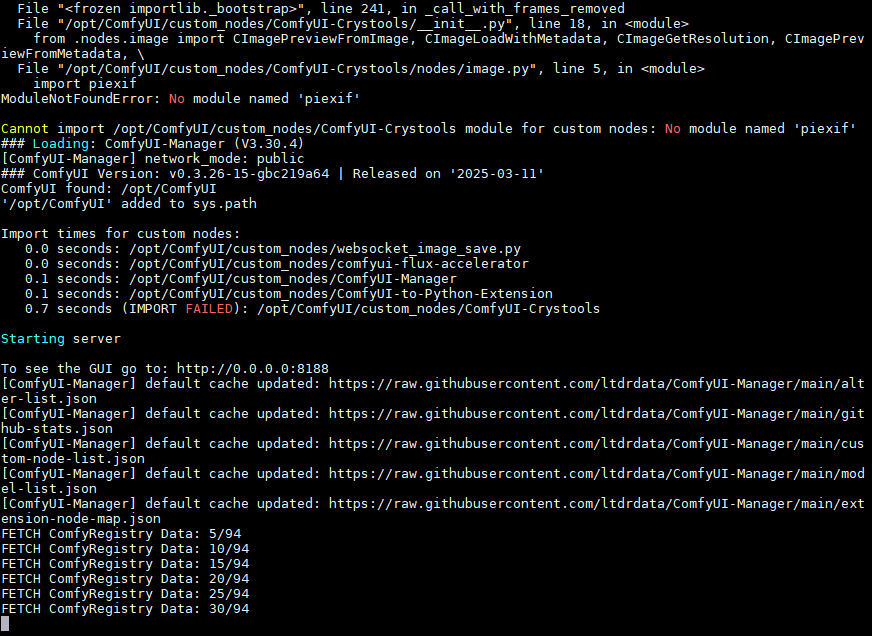
3\. 成功运行后命令行窗口输出如下

[![image.png](https://www.linkzeelabs.com/wiki/uploads/images/gallery/2025-08/scaled-1680-/wDnimage.png)](https://www.linkzeelabs.com/wiki/uploads/images/gallery/2025-08/wDnimage.png)
4\. 打开对应服务的GUI网页

若在Jetson设备上打开则访问 [http://0.0.0.0:8188](http://0.0.0.0:8188)

若在局域网内的其他设备则输入 http://&lt;jetson设备IP&gt;:8188

[![image.png](https://www.linkzeelabs.com/wiki/uploads/images/gallery/2025-08/scaled-1680-/52qimage.png)](https://www.linkzeelabs.com/wiki/uploads/images/gallery/2025-08/52qimage.png)

5\. 设定映射路径，将开发板里下载好的模型映射到容器内部目录

```bash
jetson-containers run ~/models/:/opt/ComfyUI/models/checkpoints dustynv/comfyui:r36.4.3
```

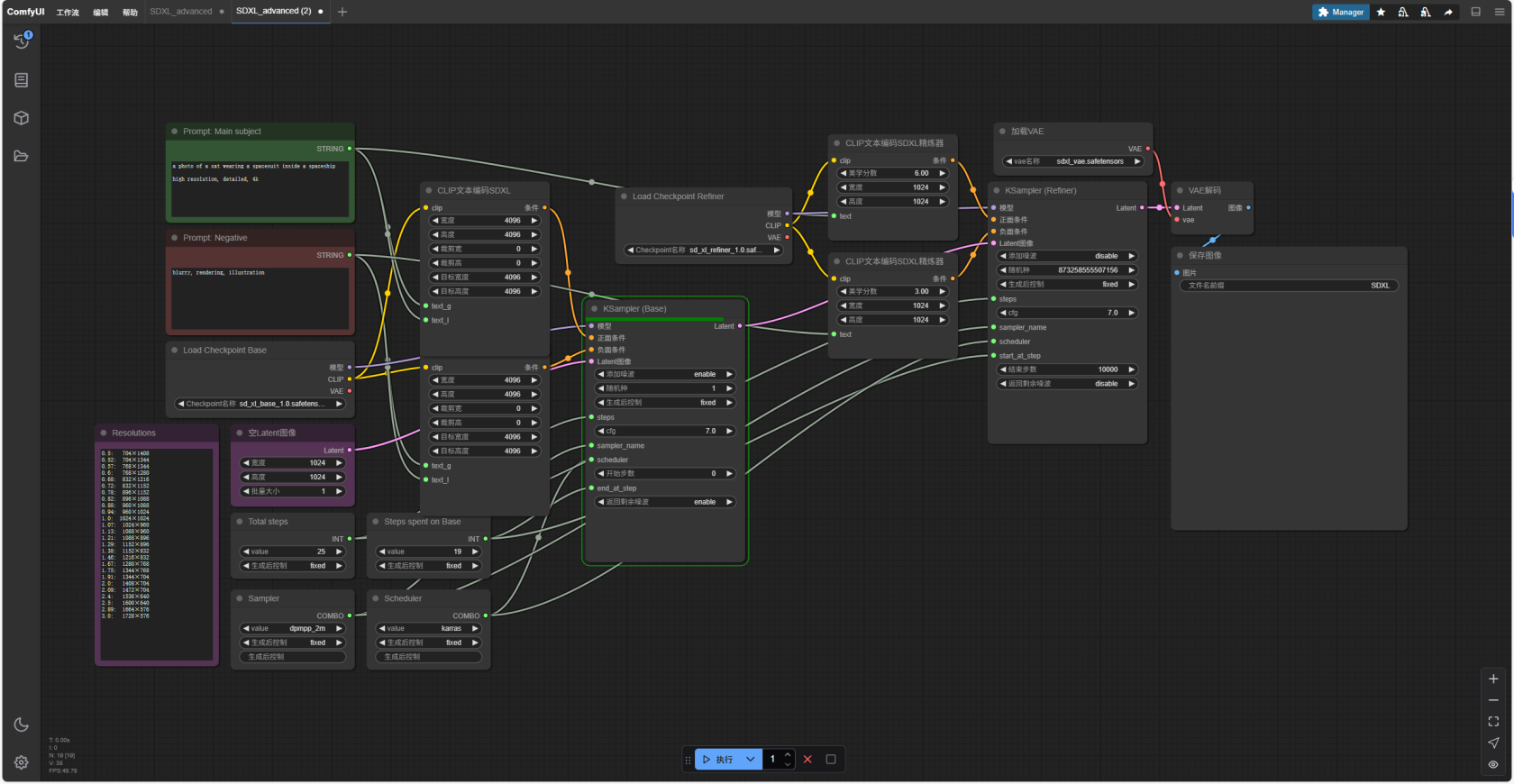
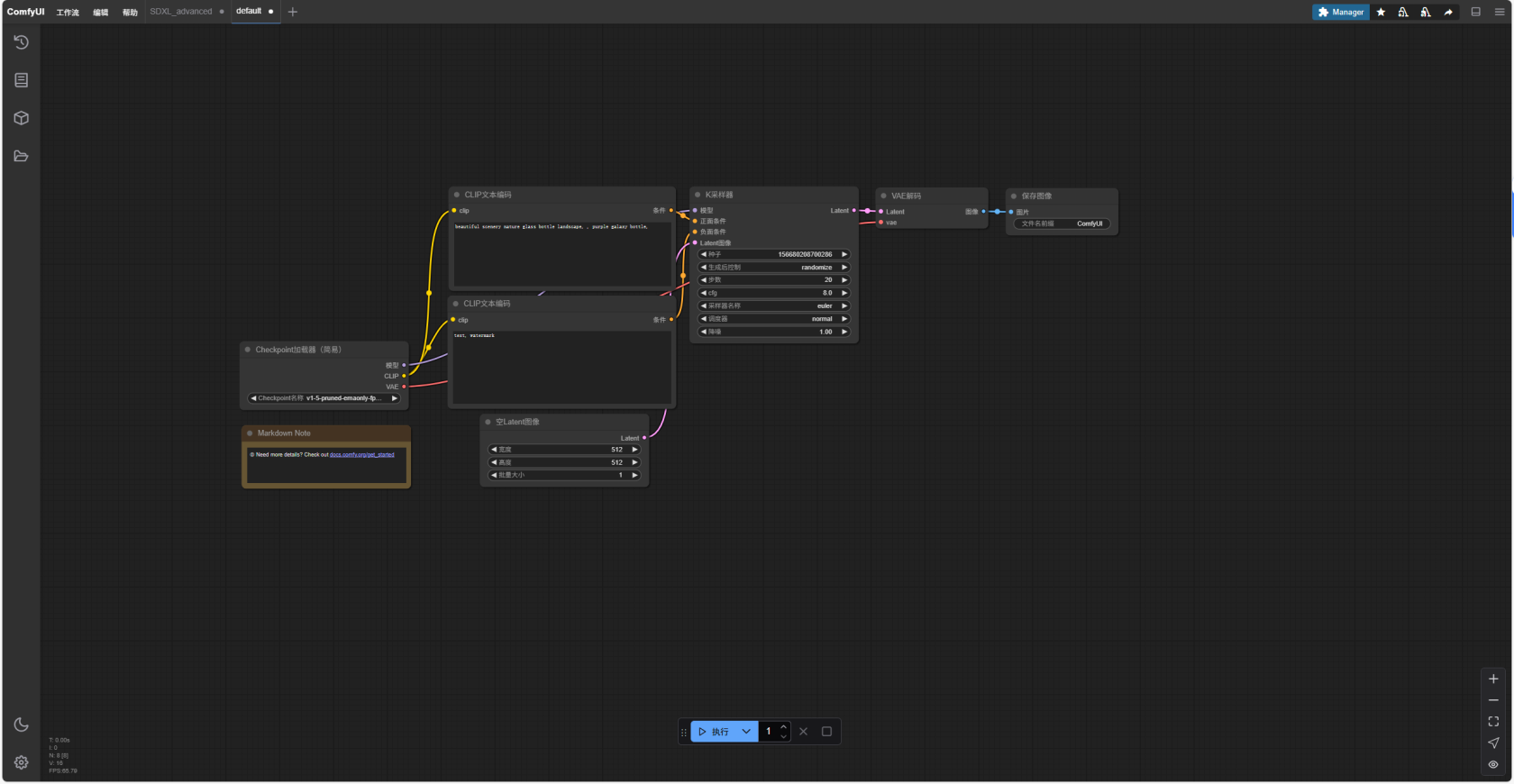
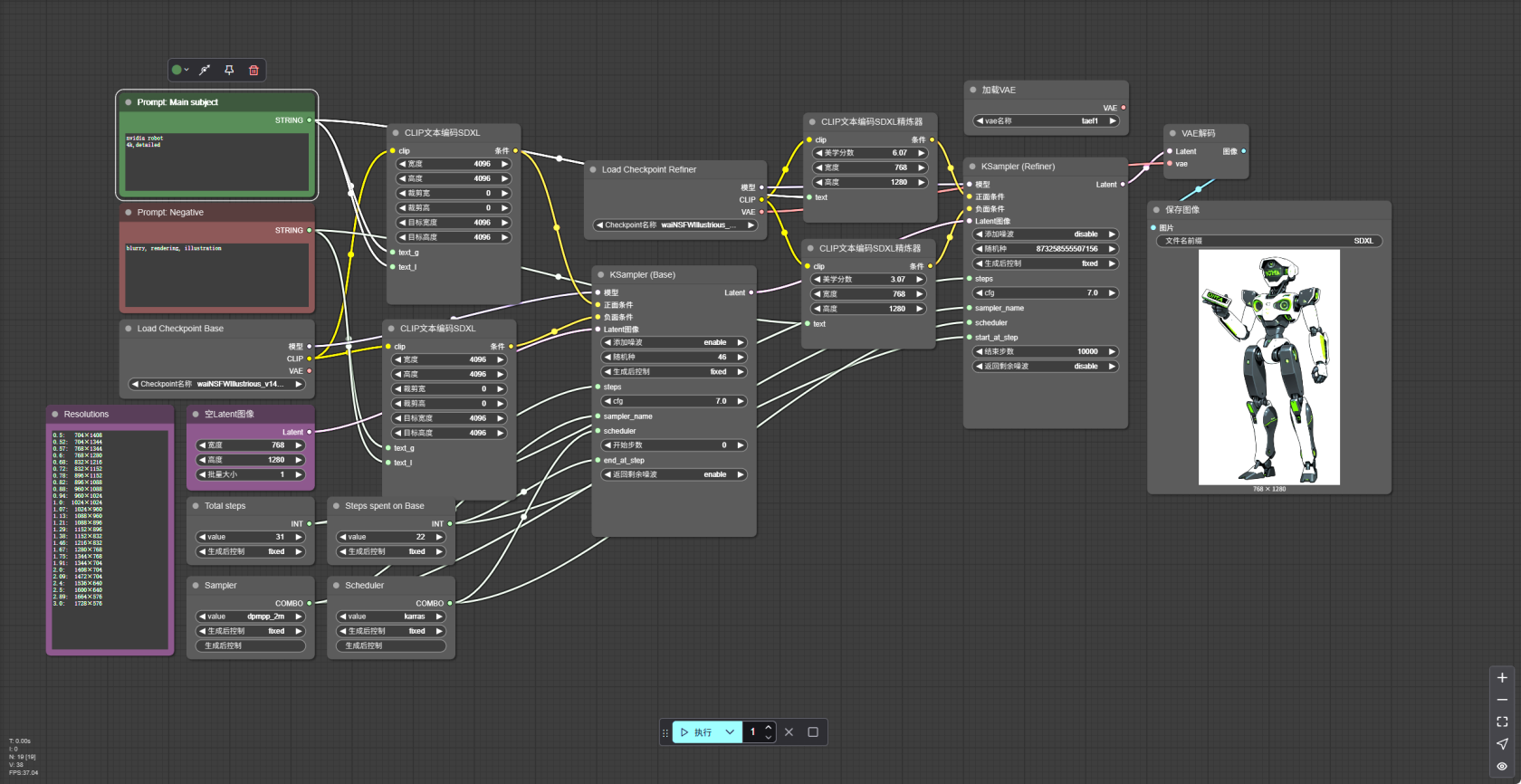
6\. 按照需求搭建工作流并调整参数生成图像

[![image.png](https://www.linkzeelabs.com/wiki/uploads/images/gallery/2025-08/scaled-1680-/1Naimage.png)](https://www.linkzeelabs.com/wiki/uploads/images/gallery/2025-08/1Naimage.png)
关于ComfyUI的使用教程请参考其官网 [ComfyUI | 用AI生成视频、图像、音频](https://www.comfy.org/zh-cn/)

# 使用TensorRT加速

c++

python绑定

# 网卡驱动


# 4G模块使用说明

移远通信LTE Standard EM05系列是一款专为IoT/M2M应用而设计的LTE Cat 4模块。采用节省空间的M.2（NGFF）封装类型，超薄、紧凑的设计使其更易于嵌入到小尺寸产品中。

EM05系列支持最大下行速率150 Mbps，最大上行速率50 Mbps,包含三个型号：EM05-CN、EM05-E和EM05-G。支持LTE-FDD、LTE-TDD、DC-HSDPA、HSPA+、HSDPA、HSUPA、WCDMA和CDMA等多种网络制式。

要在Jetson系列上使用EM-05模块需要重新编译系统内核并刷入新编译的系统。

#### 方法一：替换新内核

##### 1.1 拉取编译好的资料

##### 1.2 修改设备树配置文件

##### 1.3 移动内核和驱动到指定位置

##### 1.4 应用更改并重启验证

#### 方法二：编译刷入完整系统

##### 2.1 获取源码和工具链

- 安装编译依赖工具

```bash
sudo apt install build-essential bc
sudo apt-get install git bison flex libssl-dev zip libncurses-dev make git
sudo apt-get install build-essential bc
```

- 创建工具链放置目录

```
mkdir $HOME/l4t-gcc-toolchain
cd $HOME/l4t-gcc-toolchain
```

- 下载并解压交叉编译工具链

```
wget https://developer.nvidia.com/downloads/embedded/l4t/r36_release_v3.0/toolchain/aarch64--glibc--stable-2022.08-1.tar.bz2
tar xf aarch64--glibc--stable-2022.08-1.tar.bz2
```

- 进入到缓存好的刷机固件目录

```bash
cd $HOME/nvidia/nvidia_sdk/JetPack_6.2.1_Linux_JETSON_ORIN_NANO_TARGETS/Linux_for_Tegra/source  #根据实际目录进行修改
```

- 根据 release tag 拉取源码。[Jetson Linux Archive | NVIDIA Developer](https://developer.nvidia.com/embedded/jetson-linux-archive)

```bash
 ./source_sync.sh -k -t <release-tag> #<release-tag>替换为你自己的发行版本如 jetson_36.4.3
```

##### 2.2 修改内核源码

<p class="callout info">本部分内容可参考[移远Linux&amp;Andriod驱动技术手册](https://forums.quectel.com/uploads/short-url/95mRmCPDAFQTH1TzCIB2cuFr9Yo.pdf "移远Linux&Andriod驱动技术手册")</p>

Jetson Orin Nano配置文件路径：arch/arm64/configs/defconfig

- 配置USB转串口驱动添加如下内容

```bash
CONFIG_USB_SERIAL=y
CONFIG_USB_SERIAL_WWAN=y
CONFIG_USB_SERIAL_OPTION=y
CONFIG_USB_NET_DRIVERS=y
CONFIG_USB_USBNET=y
CONFIG_USB_NET_QMI_WWAN=y
CONFIG_USB_WDM=y
```

- 修改 drivers/usb/serial/option.c，向USB转串口驱动添加VID和PID

```c
static const struct usb_device_id option_ids[] = { 
#if 1 // 2025-04-24 Added by Quectel
    { USB_DEVICE(0x2C7C, 0x0125) }, 
#endif
    ... ...
}
```

- 使用USBNet驱动，文件路径：drivers/usb/serial/option.c

```c
static int option_probe(struct usb_serial *serial,
            const struct usb_device_id *id)
{
    ... ...
 
#if 1  // 2025-04-24 Added by Quectel  
if (serial->dev->descriptor.idVendor == cpu_to_le16(0x2C7C)) { 
        __u16 idProduct = le16_to_cpu(serial->dev->descriptor.idProduct); 
        struct usb_interface_descriptor *intf = &serial->interface->cur_altsetting->desc; 
 
        if (intf->bInterfaceClass != 0xFF || intf->bInterfaceSubClass == 0x42) { 
                //ECM, RNDIS, NCM, MBIM, ACM, UAC, ADB 
                return -ENODEV; 
        } 
 
        if ((idProduct&0xF000) == 0x0000) { 
                //MDM interface 4 is QMI 
                if (intf->bInterfaceNumber == 4 && intf->bNumEndpoints == 3 
                        && intf->bInterfaceSubClass == 0xFF && intf->bInterfaceProtocol == 0xFF) 
                        return -ENODEV; 
        } 
} 
#endif 
 
    /* Store the device flags so we can use them during attach. */
    usb_set_serial_data(serial, (void *)device_flags);
 
    return 0;
}

```

- 添加零包机制，文件路径：drivers/usb/serial/usb\_wwan.c

```c
static struct urb *usb_wwan_setup_urb(struct usb_serial_port *port,
                      int endpoint,
                      int dir, void *ctx, char *buf, int len,
                      void (*callback) (struct urb *))
{
 ... ...
    usb_fill_bulk_urb(urb, serial->dev,
              usb_sndbulkpipe(serial->dev, endpoint) | dir,
              buf, len, callback, ctx);
     
#if 1   //2025-04-24 Added by Quectel for zero packet 
    if (dir == USB_DIR_OUT) { 
        struct usb_device_descriptor *desc = &serial->dev->descriptor; 
    
        if (desc->idVendor == cpu_to_le16(0x2C7C)) 
        urb->transfer_flags |= URB_ZERO_PACKET; 
    } 
#endif
    return urb;
}
```

- 添加Reset-resume机制（休眠唤醒）文件路径：drivers/usb/serial/option.c

```c
static struct usb_serial_driver option_1port_device = {
    ... ...
#ifdef CONFIG_PM
    .suspend           = usb_wwan_suspend,
    .resume            = usb_wwan_resume,
#if 1  //2025-04-24 Added by Quectel 
    .reset_resume   = usb_wwan_resume, 
#endif
#endif
};
```

- 添加QMI\_WWAN驱动  
     移远提供了QMI\_WWAN驱动源文件qmi\_wwan\_q.c，将其复制到 drivers/net/usb/ 目录下。同时修改drivers/net/usb/Makefile，使其能编译 qmi\_wwan\_q.c

```bash
#Makefile
# must insert qmi_wwan_q.o before qmi_wwan.o 
obj-${CONFIG_USB_NET_QMI_WWAN} += qmi_wwan_q.o 
obj-${CONFIG_USB_NET_QMI_WWAN} += qmi_wwan.o 
```

##### 2.3 编译内核

<p class="callout info">此步骤可能需要进行半个小时以上</p>


- 创建输出目录

```bash
cd ../../                    
mkdir kernel_out 
```

- 编译安装内核

```bash
export CROSS_COMPILE=$HOME/l4t-gcc-toolchain/aarch64--glibc--stable-2022.08-1/bin/aarch64-buildroot-linux-gnu-        #设置交叉编译工具
make -C kernel                     #构建 Jetson Linux 内核镜像
sudo -E make install -C kernel     #安装内核模块和树内模块
```

- 将内核镜像复制到刷机目录下

```
cp kernel/kernel-jammy-src/arch/arm64/boot/Image ../Linux_for_Tegra/kernel/Image
```

- 构建NVIDIA树外模块（驱动程序）

```bash
export CROSS_COMPILE=$HOME/l4t-gcc-toolchain/aarch64--glibc--stable-2022.08-1/bin/aarch64-buildroot-linux-gnu-
export KERNEL_HEADERS=$PWD/kernel/kernel-jammy-src
make modules
```

- 安装到刷机目录下

```bash
export INSTALL_MOD_PATH=$HOME/nvidia/nvidia_sdk/JetPack_6.2.1_Linux_JETSON_ORIN_NANO_TARGETS/Linux_for_Tegra/rootfs/ #根据实际目录进行修改
sudo -E make modules_install
```

- 开始构建DTB

```bash
export CROSS_COMPILE=$HOME/l4t-gcc-toolchain/aarch64--glibc--stable-2022.08-1/bin/aarch64-buildroot-linux-gnu-
export KERNEL_HEADERS=$PWD/kernel/kernel-jammy-src
make dtbs
```

- 将生成的dtb文件拷贝到刷机目录

```bash
cp kernel-devicetree/generic-dts/dtbs/* /Linux_for_Tegra/kernel/dtb/
```

##### 2.4 刷入系统

- 进入刷机固件缓存目录

```bash
cd $HOME/nvidia/nvidia_sdk/JetPack_6.2.1_Linux_JETSON_ORIN_NANO_TARGETS/Linux_for_Tegra/source  #根据实际目录进行修改
```

使用命令行刷机：

- super模式

```bash
sudo ./tools/kernel_flash/l4t_initrd_flash.sh --external-device nvme0n1p1 -c tools/kernel_flash/flash_l4t_t234_nvme.xml -p "-c bootloader/generic/cfg/flash_t234_qspi.xml" --showlogs --network usb0 jetson-orin-nano-devkit-super internal
```

- 普通模式

```
sudo ./flash.sh jetson-orin-nano-devkit-nvme internal
```

##### 2.5 开机验证

- 将Quectel\_Qconnectmanager上传到开发板
- 解压并编译

```bash
unizp Quectel_QConnectManager_Linux_V1.6.5.zip
cd Quectel_QConnectManager_Linux_V1.6.5
make
```

成功运行便可4G拨号上网

```
jetson@jetson-desktop:~/Downloads/Quectel_QConnectManager_Linux_V1.6.5$ sudo ./quectel-CM
[08-08_11:39:04:415] QConnectManager_Linux_V1.6.5
[08-08_11:39:04:416] Find /sys/bus/usb/devices/1-2.2 idVendor=0x2c7c idProduct=0x125, bus=0x001, dev=0x007
[08-08_11:39:04:416] Auto find qmichannel = /dev/cdc-wdm0
[08-08_11:39:04:417] Auto find usbnet_adapter = wwan0
[08-08_11:39:04:417] netcard driver = qmi_wwan_q, driver version = V1.2.6
[08-08_11:39:04:417] Modem works in QMI mode
[08-08_11:39:04:447] cdc_wdm_fd = 7
[08-08_11:39:04:523] Get clientWDS = 5
[08-08_11:39:04:557] Get clientDMS = 1
[08-08_11:39:04:589] Get clientNAS = 2
[08-08_11:39:04:620] Get clientUIM = 1
[08-08_11:39:04:653] Get clientWDA = 1
[08-08_11:39:04:684] requestBaseBandVersion EM05CNFDR08A03M1G_ND
[08-08_11:39:04:812] requestGetSIMStatus SIMStatus: SIM_READY
[08-08_11:39:04:876] requestGetProfile[pdp:1 index:1] ctnet///0/IPV4V6
[08-08_11:39:04:908] requestRegistrationState2 MCC: 460, MNC: 11, PS: Attached, DataCap: LTE
[08-08_11:39:04:940] requestQueryDataCall IPv4ConnectionStatus: DISCONNECTED
[08-08_11:39:04:941] ip addr flush dev wwan0
[08-08_11:39:04:947] ip link set dev wwan0 down
[08-08_11:39:05:003] requestSetupDataCall WdsConnectionIPv4Handle: 0x8723e530
[08-08_11:39:05:132] ip link set dev wwan0 up
[08-08_11:39:05:141] No default.script found, it should be in '/usr/share/udhcpc/' or '/etc//udhcpc' depend on your udhcpc version!
[08-08_11:39:05:142] busybox udhcpc -f -n -q -t 5 -i wwan0
udhcpc: started, v1.30.1
udhcpc: sending discover
udhcpc: sending select for 10.21.181.66
udhcpc: lease of 10.21.181.66 obtained, lease time 7200
[08-08_11:39:05:282] ip -4 address flush dev wwan0
[08-08_11:39:05:286] ip -4 address add 10.21.181.66/30 dev wwan0
[08-08_11:39:05:292] ip -4 route add default via 10.21.181.65 dev wwan0
```

查看网卡信息

```bash
jetson@jetson-desktop:~$  ifconfig wwan0
wwan0: flags=193<UP,RUNNING,NOARP>  mtu 1500
        inet 10.21.181.66  netmask 255.255.255.252
        inet6 fe80::5804:41ff:feda:ce83  prefixlen 64  scopeid 0x20<link>
        ether 5a:04:41:da:ce:83  txqueuelen 1000  (Ethernet)
        RX packets 9  bytes 2304 (2.3 KB)
        RX errors 0  dropped 0  overruns 0  frame 0
        TX packets 22  bytes 1854 (1.8 KB)
        TX errors 0  dropped 0 overruns 0  carrier 0  collisions 0

```

连通性测试


[![ping_test.png](https://www.linkzeelabs.com/wiki/uploads/images/gallery/2025-08/scaled-1680-/ZwPping-test.png)](https://www.linkzeelabs.com/wiki/uploads/images/gallery/2025-08/ZwPping-test.png)