
Orin Nano&NX JetPack5 GPIO Tutorial
1. Get the Pin Names and Numbers of the GPIO Pins
1.1 GPIO Pin Location Diagram
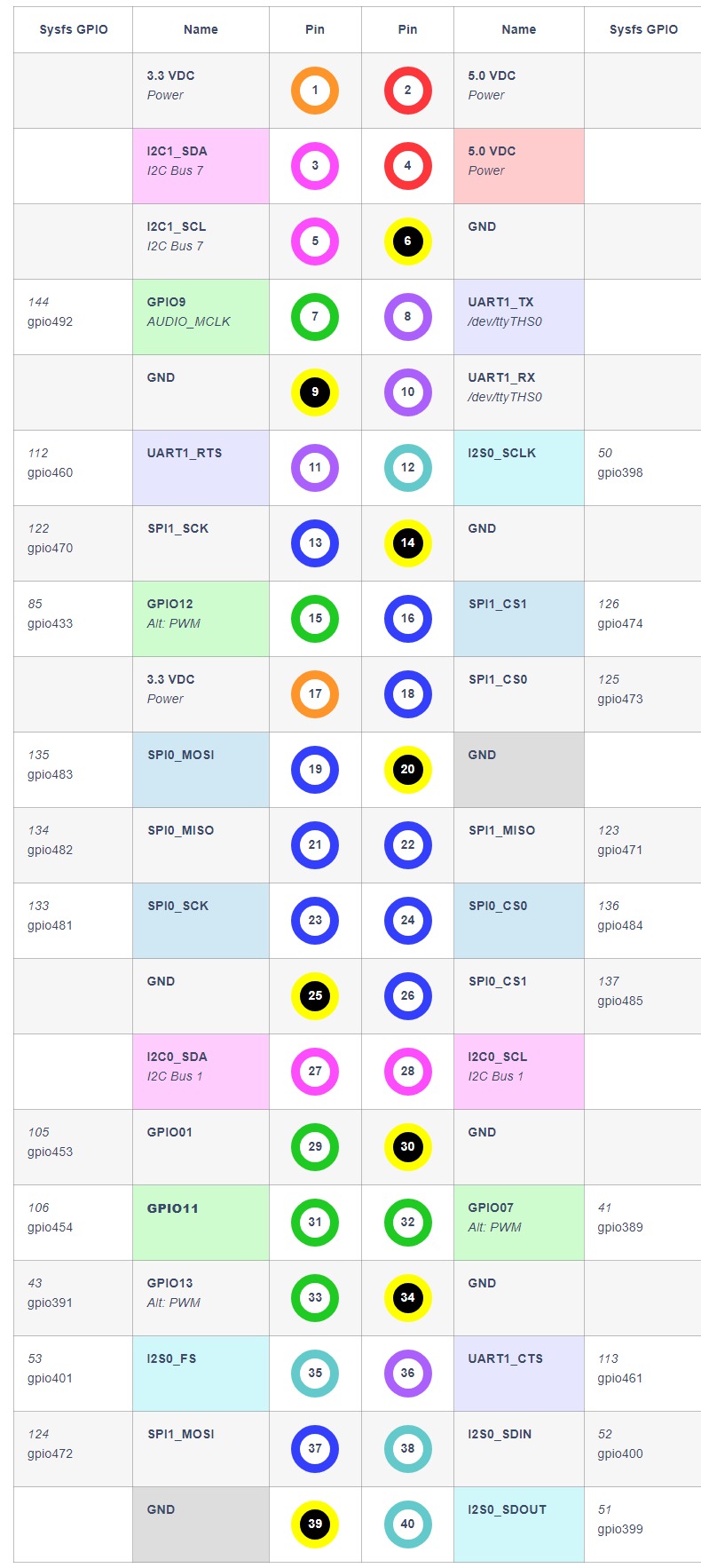
1.2 GPIO Pin Names and Numbers
Number and name for each pin (pin number / GPIO / number / pin name):
text
Pin 7  GPIO09 492 PAC.06
Pin 15 GPIO12 433 PN.01
Pin 29 GPIO01 453 PQ.05
Pin 31 GPIO11 454 PQ.06
Pin 32 GPIO07 389 PG.06
Pin 33 GPIO13 391 PH.00
2. Control GPIO from the Command Line
2.1 Get the Pin Name and Number of the GPIO Pin
Taking pin 31 as an example, 454 is the GPIO number and PQ.06 is the pin name.
For specific values, refer to the previous section "1.2 GPIO Pin Names and Numbers".
2.2 Elevate to Root Privileges and Enable the GPIO Pin
bash
sudo bash
echo 454 > /sys/class/gpio/export
2.3 Set the GPIO to Input Mode
bash
echo in > /sys/class/gpio/PQ.06/directionGet the current GPIO state; a return value of 1 means high level and 0 means low level:
bash
cat /sys/class/gpio/PQ.06/value2.4 Set the GPIO to Output Mode
bash
echo out > /sys/class/gpio/PQ.06/directionSet the GPIO output; 1 is high level and 0 is low level:
bash
echo 1 > /sys/class/gpio/PQ.06/value