
Orin Nano&NX JetPack6 GPIO Tutorial
1. Get the Register Addresses of the GPIO Pins
1.1 GPIO Pin Location Diagram
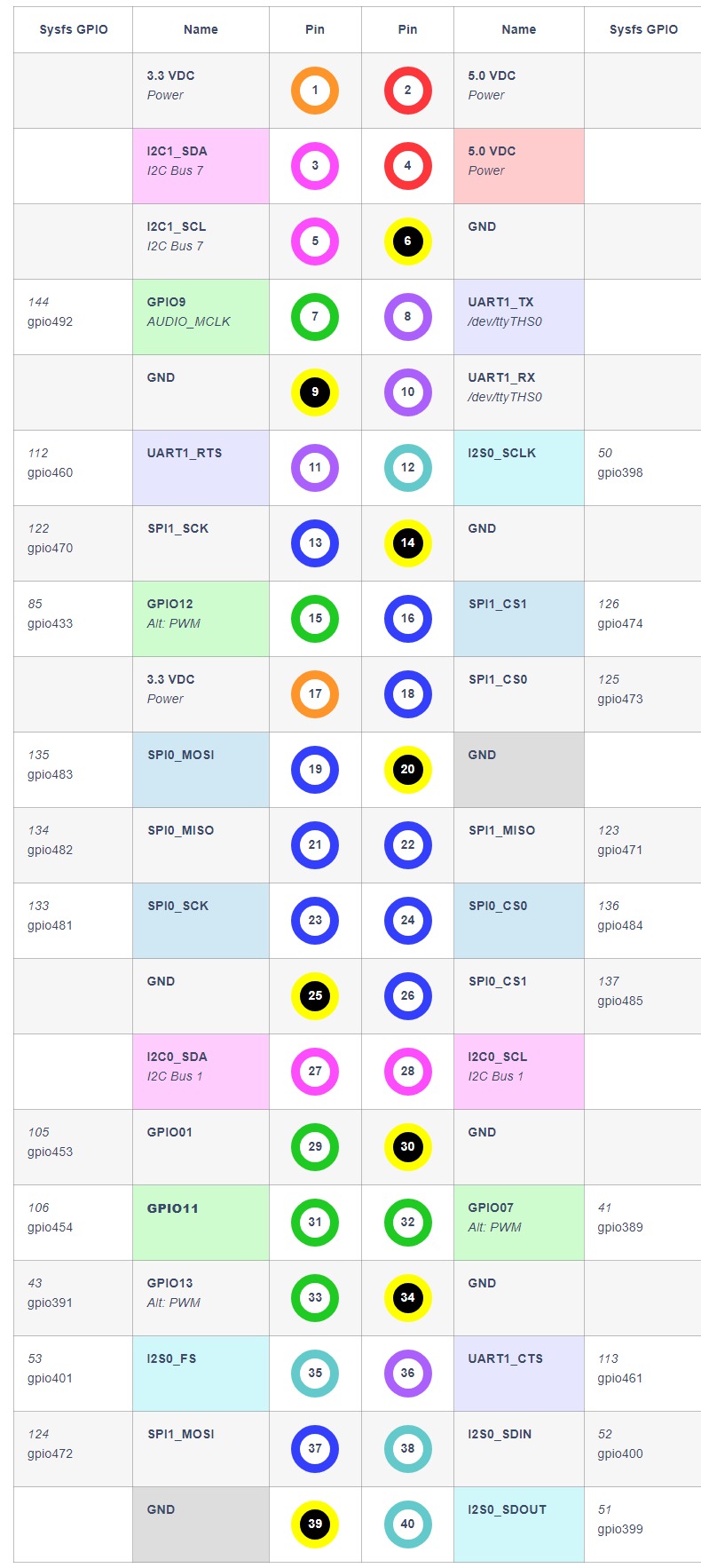
1.2 PADCTL Base Addresses and GPIO Offsets
PADCTL base addresses:
text
PADCTL_A0(PADCTL_G3)    0x02430000
PADCTL_A4(PADCTL_G4)    0x02434000
PADCTL_A16(PADCTL_EDP)  0x02440000
PADCTL_A24(PADCTL_G7)   0x02448000
Register address for each pin (pin number / GPIO / PADCTL name / offset / gpio number / pin name / register address):
text
Pin 7  GPIO09 PADCTL_G7_SOC_GPIO59_0  0x30 gpio-492 PAC.06 0x02448030
Pin 15 GPIO12 PADCTL_EDP_SOC_GPIO39_0 0x20 gpio-433 PN.01  0x02440020
Pin 29 GPIO01 PADCTL_G3_SOC_GPIO32_0  0x68 gpio-453 PQ.05  0x02430068
Pin 31 GPIO11 PADCTL_G3_SOC_GPIO33_0  0x70 gpio-454 PQ.06  0x02430070
Pin 32 GPIO07 PADCTL_G4_SOC_GPIO19_0  0x80 gpio-389 PG.06  0x02434080
Pin 33 GPIO13 PADCTL_G4_SOC_GPIO21_0  0x40 gpio-391 PH.00  0x02434040
1.3 (Optional) Refer to the Official Tutorial
NVIDIA Jetson Orin NX/Nano Series — Changing the Pinmux
2. Control GPIO from the Command Line
2.1 Install busybox and libgpiod2
bash
sudo apt install busybox libgpiod22.2 Get the Register Address and GPIO Name
Taking pin 31 as an example, 0x02430070 is the register address and PQ.06 is the GPIO name.
For specific values, refer to the previous section "1.2 PADCTL Base Addresses and GPIO Offsets".
2.3 Set the GPIO to Input Mode
The default mode after power-on is input. You can also set it to input mode again via the command line:
bash
sudo busybox devmem 0x02430070 w 0x58Get the current GPIO state; a return value of 1 means high level and 0 means low level:
bash
gpioget $(gpiofind "PQ.06")2.4 Set the GPIO to Output Mode
Set it to output mode via the command line:
bash
sudo busybox devmem 0x02430070 w 0x0Set the GPIO output; 1 is high level and 0 is low level:
bash
gpioset --mode=wait $(gpiofind "PQ.06")=1