
Flash JetPack 7 (Orin Nano/NX)
Starting with JetPack 7.2 (Jetson Linux r39.2, based on Ubuntu 24.04), the flashing method for Orin Nano/NX changed significantly: NVIDIA now uses a Jetson ISO bootable-USB installer that writes the OS to a microSD card or NVMe. SD card images are no longer provided, and SDK Manager is no longer required.
This guide covers the new ISO installer method, plus notes on third-party carrier boards (C1901/C1902) and SUPER mode.
Prerequisite: JetPack 6.x-generation firmware required
Installing JetPack 7.2 requires the device to already have JetPack 6.x-generation UEFI/QSPI firmware (version 36.0 or newer).
- If your firmware is ≥ 36.0, follow this guide directly.
- If it is older than 36.0 (e.g. original factory firmware), you must complete a JetPack 6.x install first to bring the firmware to 36.x, then flash JetPack 7. See Flash the Official Developer Kit or the matching carrier-board guide to install JetPack 6.x first.
Scope
- Modules: Jetson Orin Nano / Orin NX
- Version: JetPack 7.2 (L4T r39.2)
- Boards: Official Developer Kit, plus reference-design third-party carrier boards (e.g. C1901, C1902). Third-party boards also need JetPack 6.x firmware first.
Overall Flow
The process has a PC-side part (download and create the USB) and a device-side part (boot, install, and set up). Confirm the firmware path before you start:
Maps to the sections below: Step 1 → Section 2, Steps 2–3 → Sections 1 & 3, Step 4 → Section 4, Step 5 → Section 5.
1. Preparation
| Item | Notes |
|---|---|
| Jetson ISO image | jetsoninstaller-r39.2.0-*-arm64.iso (r39.2) |
| USB flash drive | Used to create the ISO installer (install media, not the system drive) |
| Target storage | microSD (64GB UHS-1 or larger) or NVMe SSD (recommended, more capacity and speed) |
| Balena Etcher | Tool to write the ISO to the USB drive |
Download the Jetson ISO (r39.2):
- Official download page: https://developer.nvidia.com/embedded/jetpack/downloads
- Direct link example:
https://developer.nvidia.com/downloads/embedded/L4T/r39_Release_v2.0/iso/jetsoninstaller-r39.2.0-*-arm64.iso
Choose one target storage:
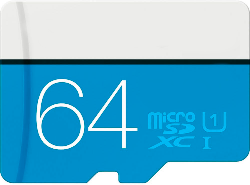
microSD (64GB UHS-1 or larger)
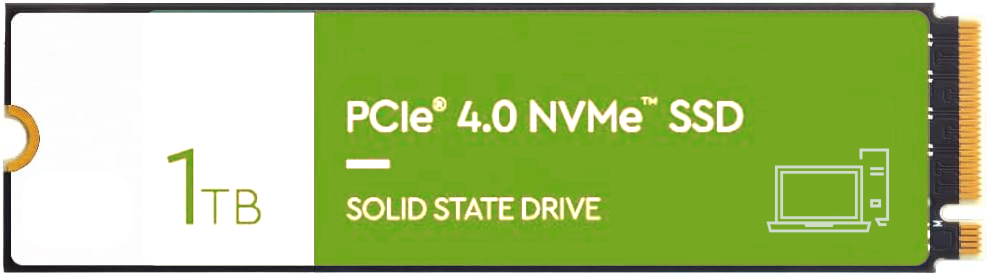
NVMe SSD (recommended)
2. Confirm the Current Firmware Version
Before flashing JetPack 7, confirm the device's UEFI/QSPI firmware is ≥ 36.0. Use any one of these methods:
- With a monitor: Connect a DisplayPort monitor and USB keyboard, power on, repeatedly press
Escat the NVIDIA boot splash to enter the UEFI setup menu, and read the firmware version. - Headless serial: Connect a USB-to-TTL serial cable to the Button Header (RXD = pin 3, TXD = pin 4, GND = pin 7), open a serial console, power on, and press
Escrepeatedly to enter the UEFI menu. - Boot media test: Simply try booting the JetPack 7 install media (less precise; not recommended for an exact check).
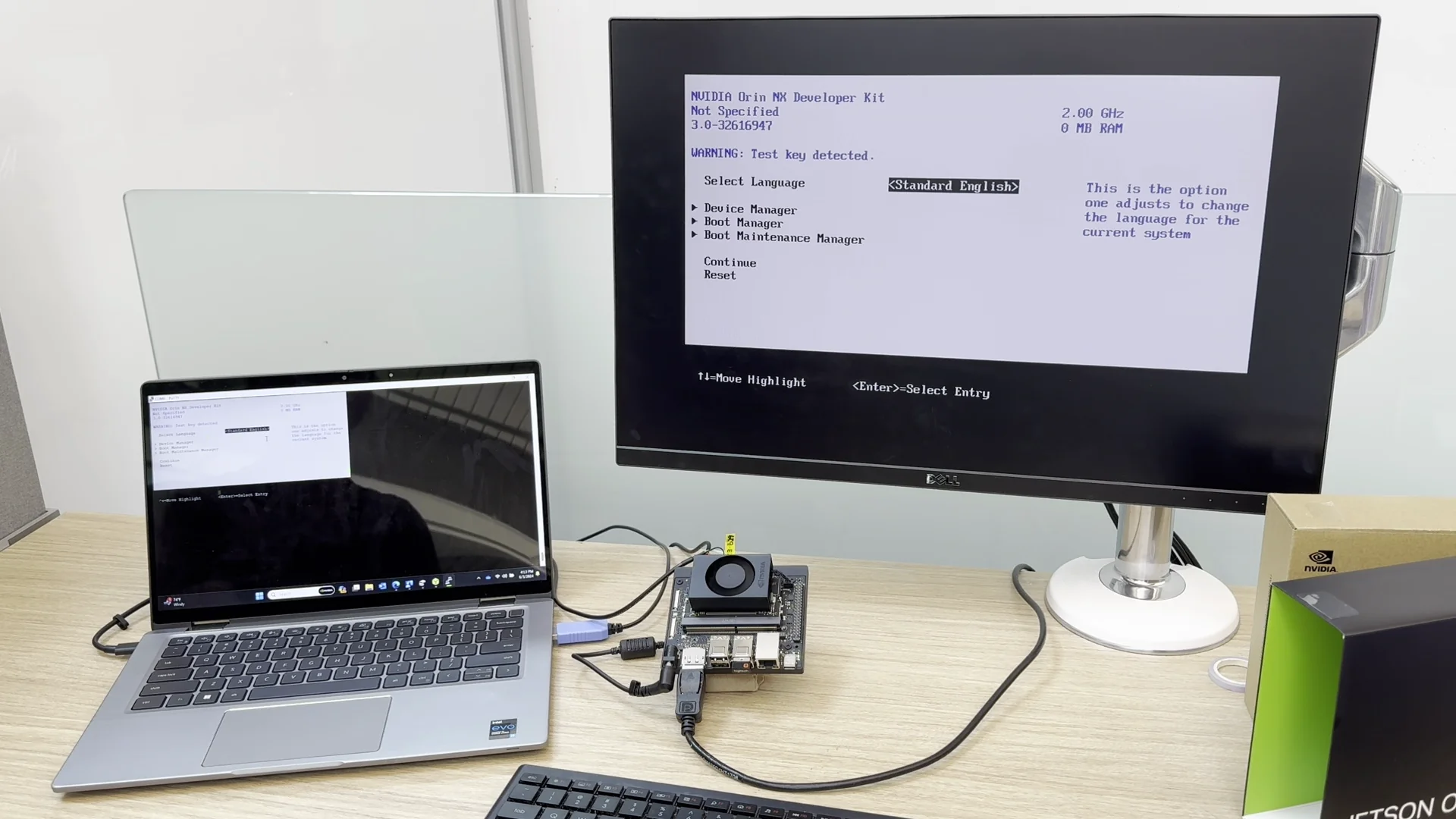
Reading the firmware version in the UEFI setup menu
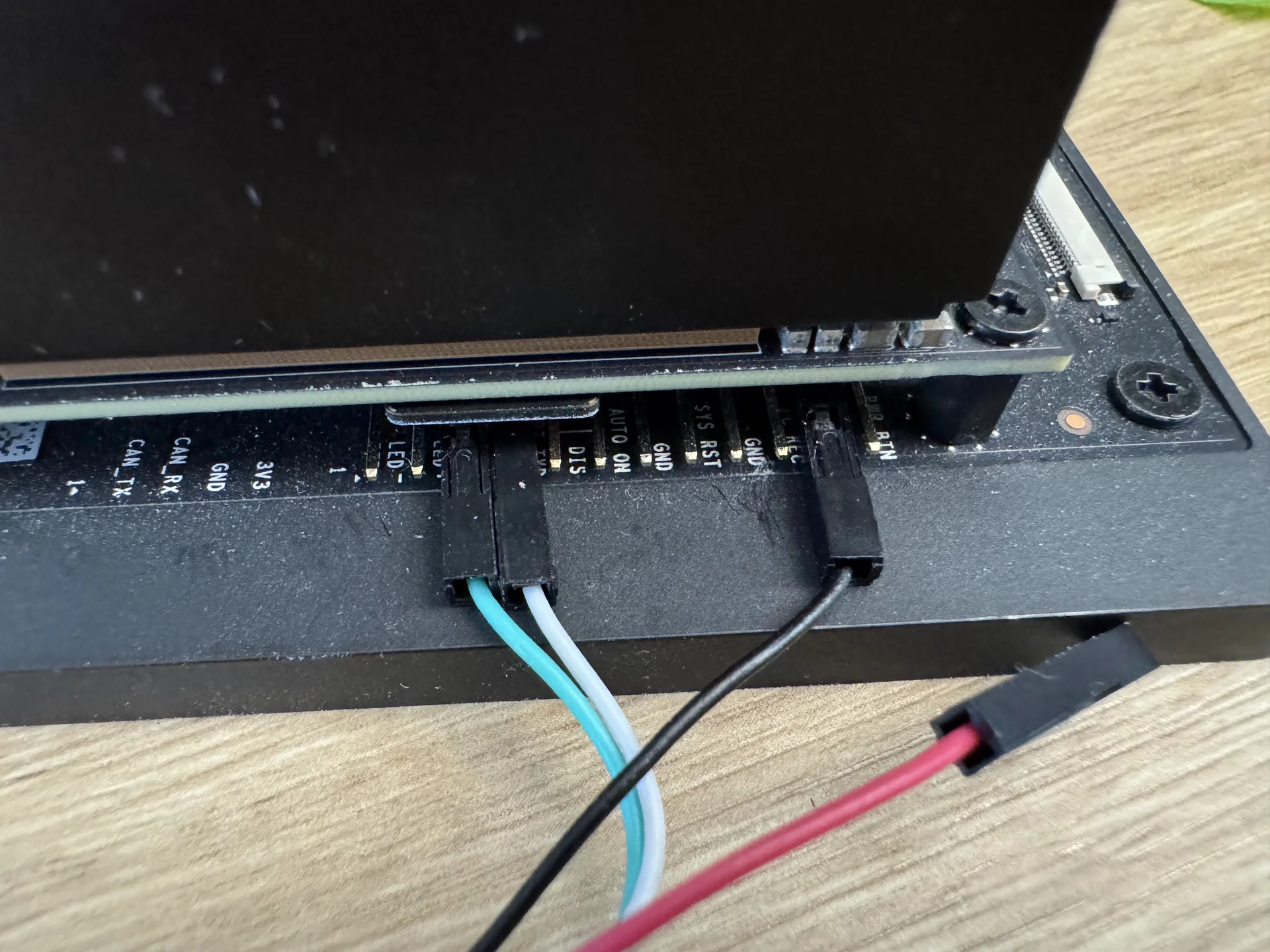
Headless: a USB-to-TTL serial cable on the Button Header (RXD/TXD/GND)
If the version is older than
36.0, complete the JetPack 6.x update from the "Prerequisite" box above before continuing.
3. Create the ISO USB
- Open Balena Etcher.
- Select the downloaded
jetsoninstaller-r39.2.0-*-arm64.iso. - Select the USB drive to write.
- Click Flash to write. When done you have a Jetson ISO installer USB.
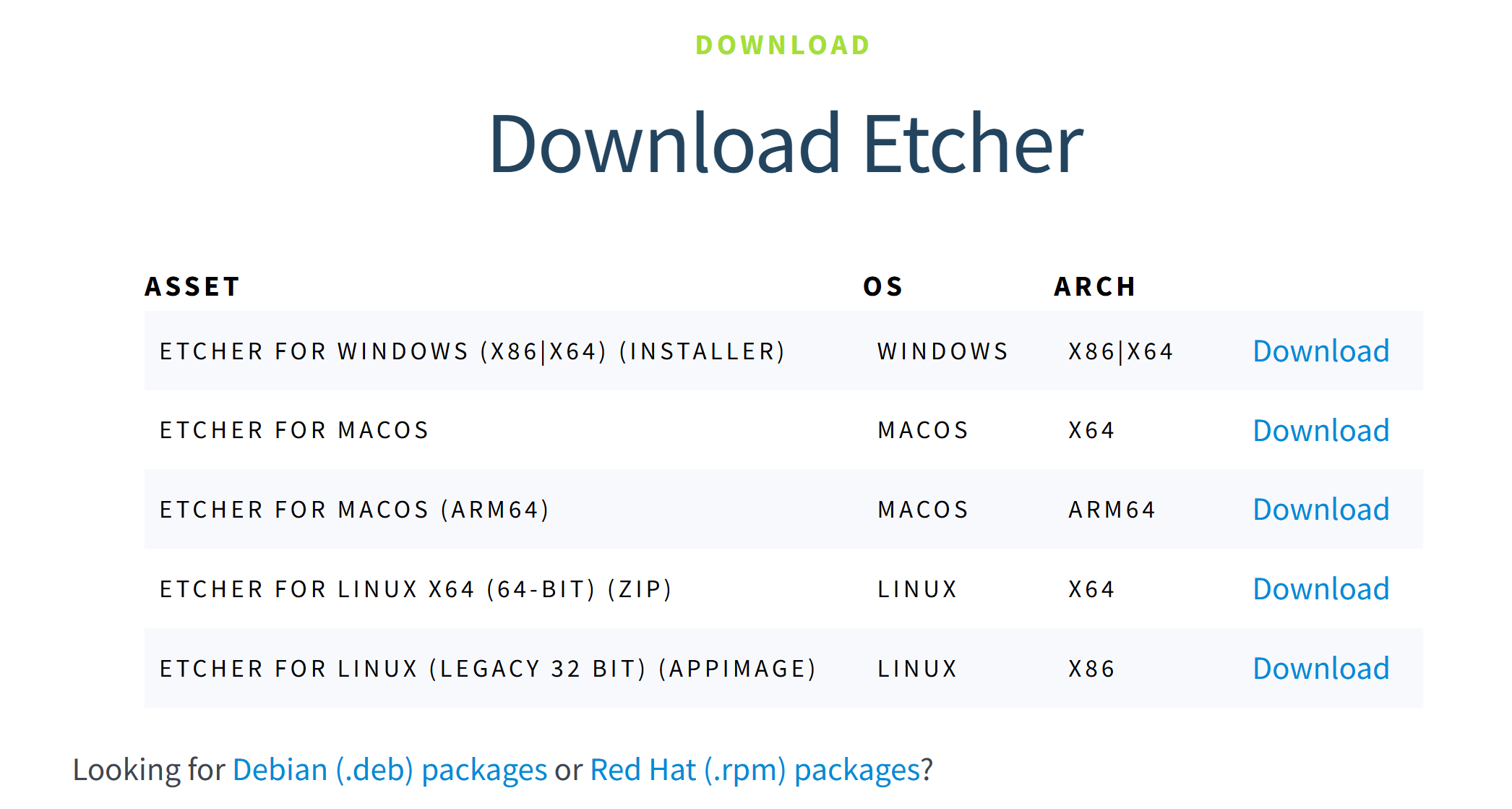
Balena Etcher
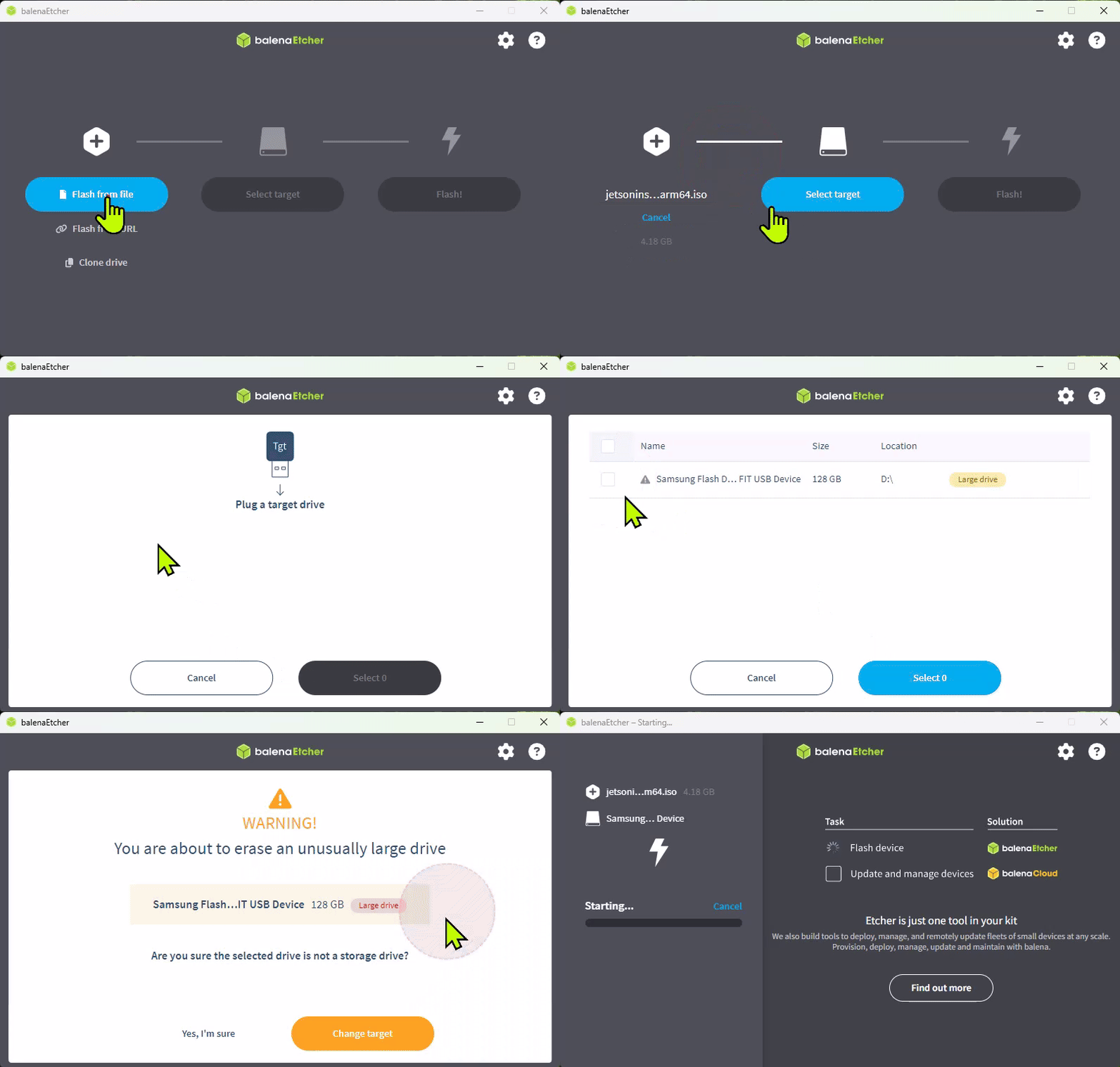
Select the ISO and the USB drive, then click Flash
4. Boot the ISO and Install
- Power off, insert the ISO installer USB, install the target storage (microSD or NVMe), and connect a monitor, keyboard, and power.
- Power on and follow the installer:
- When the UEFI capsule (firmware) update confirmation appears, press
Y(about a 30-second timeout). - The device runs a dual-pass UEFI capsule update and reboots automatically in between — this is normal; do not cut power.
- At the GRUB menu, select
Install Jetson ISO r39.2. - Choose the target storage device (microSD or NVMe).
- Confirm the install (this erases the target storage).
- When the UEFI capsule (firmware) update confirmation appears, press
- When done, remove the USB, reboot, and boot from the target storage.
- Follow the prompts to complete the Ubuntu initial setup (language, time zone, keyboard, username, password).
5. Enable SUPER Mode
On first boot the default power mode is usually 25W. Enabling maximum performance (SUPER mode) is exactly the same as JetPack 6.2:
- Click the current power mode in the Ubuntu desktop top bar.
- Select Power Mode.
- Choose MAXN SUPER.
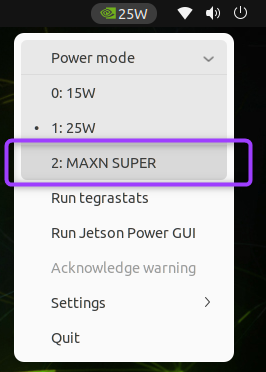
Selecting MAXN SUPER in the power mode menu
Seeing the 25W and MAXN SUPER options means SUPER mode is active (normal mode only has 7W / 15W).
Other Flashing Methods (Optional)
The ISO installer is the method NVIDIA recommends, but the following two still work on JetPack 7.2 and suit headless, batch, or third-party-carrier-board scenarios:
SDK Manager (Direct Flash)
On an Ubuntu host, use NVIDIA SDK Manager's Direct Flash to install the OS and the JetPack components (CUDA, cuDNN, TensorRT, etc.) in one guided flow. For host and SDK Manager setup, see Install Ubuntu VM and SDK Manager.
Command-line initrd flash (third-party boards / SUPER firmware)
When Orin Nano/NX uses NVMe as external storage, NVIDIA recommends the l4t_initrd_flash.sh command-line flash. Flashing SUPER firmware on a third-party board uses the exact same command as JetPack 6.2 — only change the JetPack directory version to 7.2 (this relies on the official firmware cache, so complete at least one full flash with SDK Manager first).
Put the board into recovery mode (on C1901/C1902, short FC REC and GND with a jumper, connect Type-C to the host, and power on), close any running SDK Manager, then run:
cd /home/ubuntu/nvidia/nvidia_sdk/JetPack_7.2_Linux_JETSON_ORIN_NANO_TARGETS/Linux_for_Tegra
sudo ./tools/kernel_flash/l4t_initrd_flash.sh --external-device nvme0n1p1 \
  -c tools/kernel_flash/flash_l4t_t234_nvme.xml -p "-c bootloader/generic/cfg/flash_t234_qspi.xml" \
  --showlogs --network usb0 jetson-orin-nano-devkit-super internal
The only difference from JetPack 6.2 is that
JetPack_6.2.1_...in the path becomesJetPack_7.2_...; every other parameter (includingjetson-orin-nano-devkit-super) stays the same. For full background and recovery-mode details, see the "Flash SUPER firmware via command line" section in Flash the C1902.
Troubleshooting
- Stuck on firmware update / repeated reboots: The dual-pass capsule update reboots several times — this is normal; never cut power mid-way.
- No Install option in GRUB / cannot boot the ISO: Confirm the firmware is ≥ 36.0 (see Section 2); older firmware needs the JetPack 6.x update first.
- Target storage not found: Confirm the microSD/NVMe is properly installed and detected; a single-sided NVMe SSD is recommended.
Source: NVIDIA Jetson Orin Nano Developer Kit — Quick Start Guide