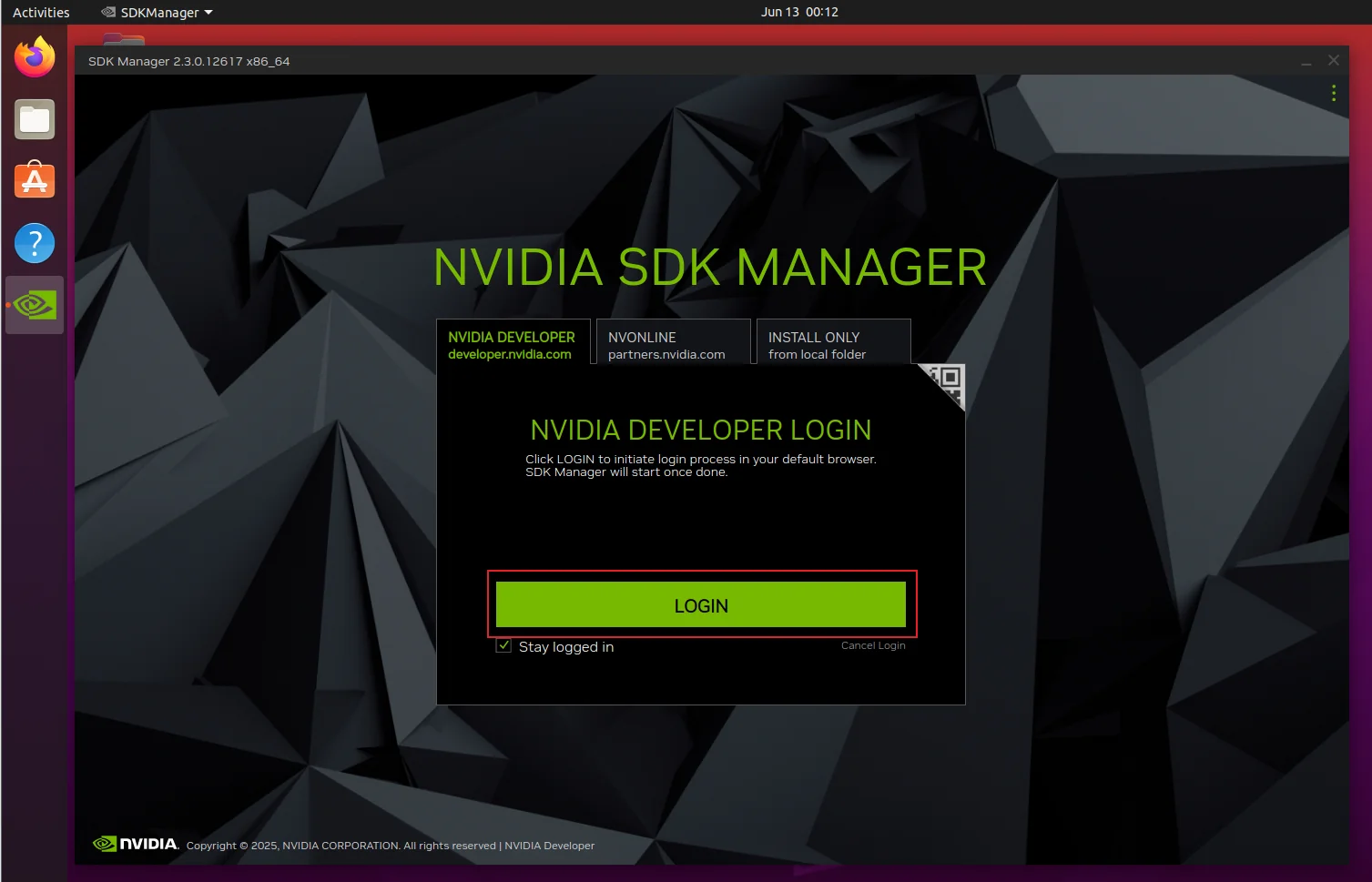
Install Ubuntu VM and SDK Manager
NVIDIA's official SDK Manager is the most common tool for flashing Jetson modules, and it needs to run on Ubuntu. This guide explains how to install Ubuntu inside a VMware virtual machine and deploy SDK Manager.
Recommended Setup
- Ubuntu 20.04 or 22.04 (64-bit)
- VM memory ≥ 8GB, disk ≥ 60GB
- Reserve enough USB controllers to detect the module
1. Preparation
Download the following software:
| Software | Description |
|---|---|
| VMware Workstation | Virtual machine software (free for personal use) |
| Ubuntu 20.04/22.04 ISO | System image |
| NVIDIA SDK Manager | Downloaded from the NVIDIA website (account required) |
2. Install the VMware Virtual Machine
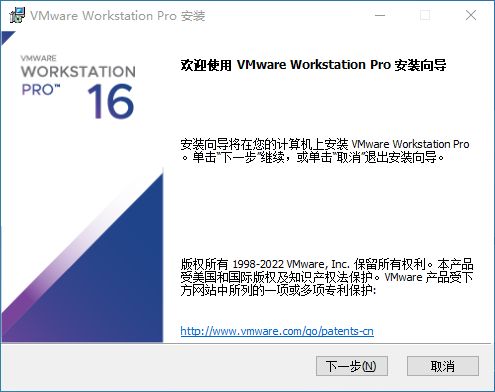
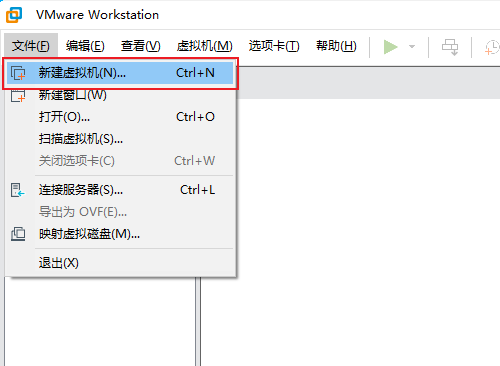
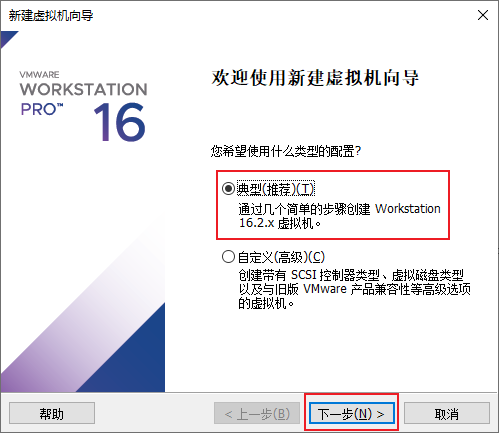
Follow the installation wizard to complete the VMware installation, then create a new virtual machine.
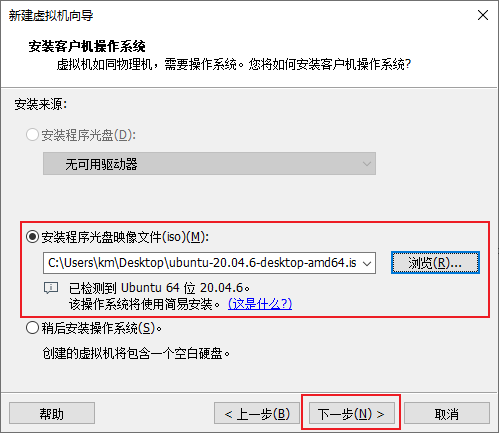
Select the Ubuntu ISO image you downloaded.
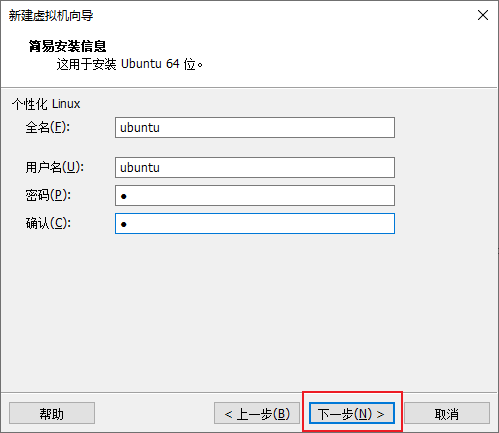
Set a username and password. Remember this password — you will use it frequently later.
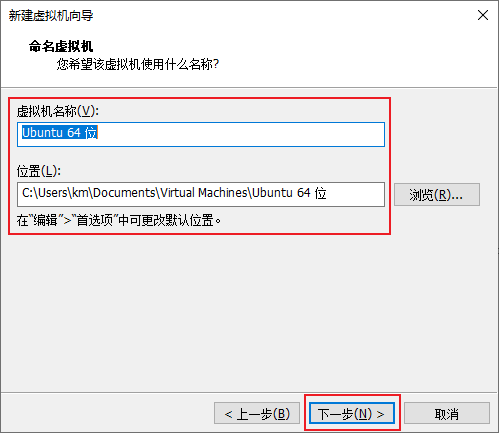
Set the VM name and storage location; a disk with plenty of free space is recommended.
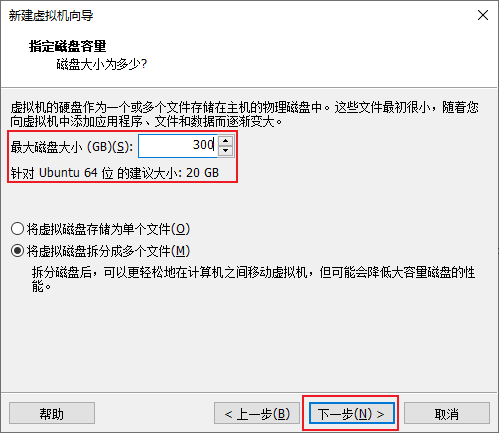
Set the disk capacity to 60GB or more, and choose "Split virtual disk into multiple files".
Click "Customize Hardware" to adjust memory, processors, and other settings.
Set the memory to 8GB or more, and configure the processors based on your host.
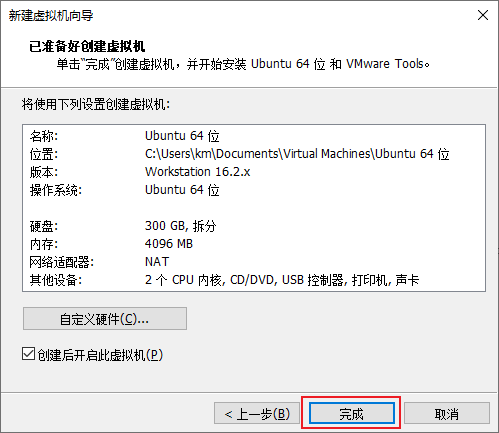
When done, power on the virtual machine and begin the Ubuntu installation.
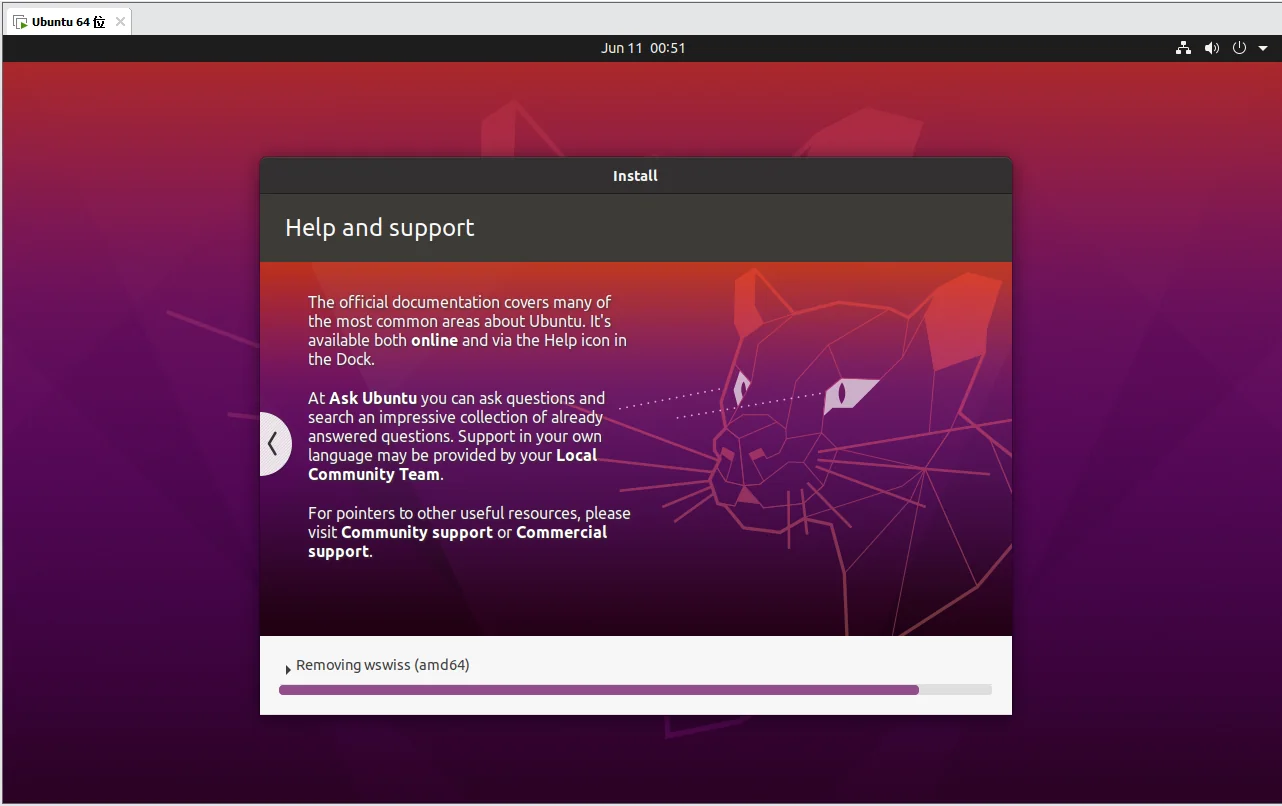
Follow the prompts to complete the Ubuntu installation.
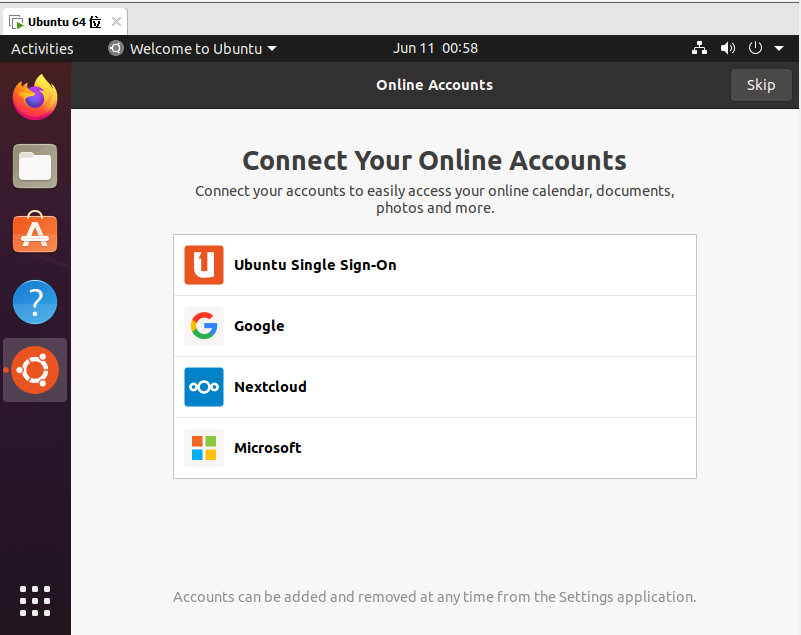
3. Install SDK Manager
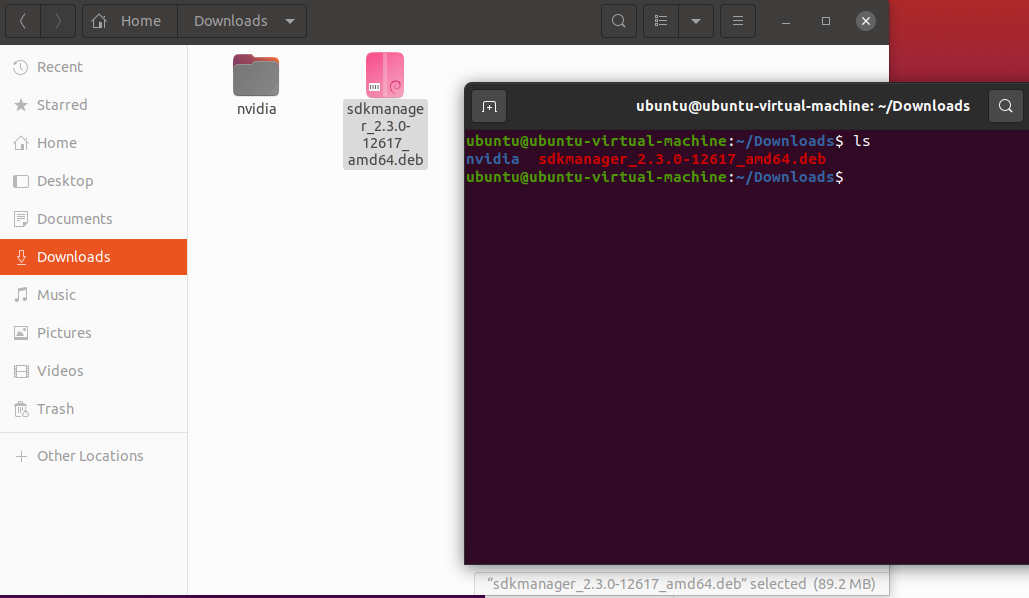
Once inside Ubuntu, open a terminal and install the SDK Manager deb package you downloaded:
sudo apt install ./sdkmanager_*.deb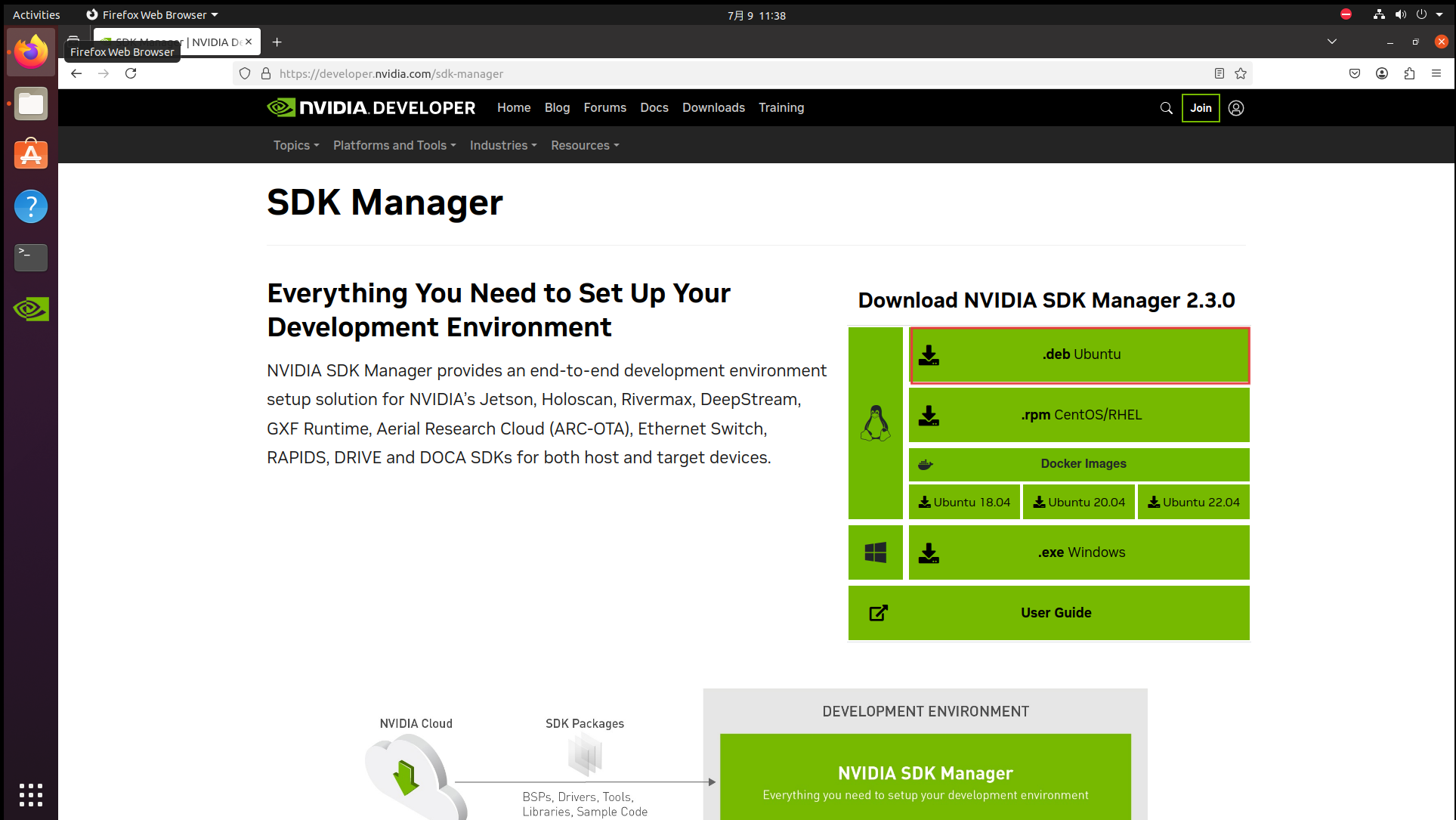
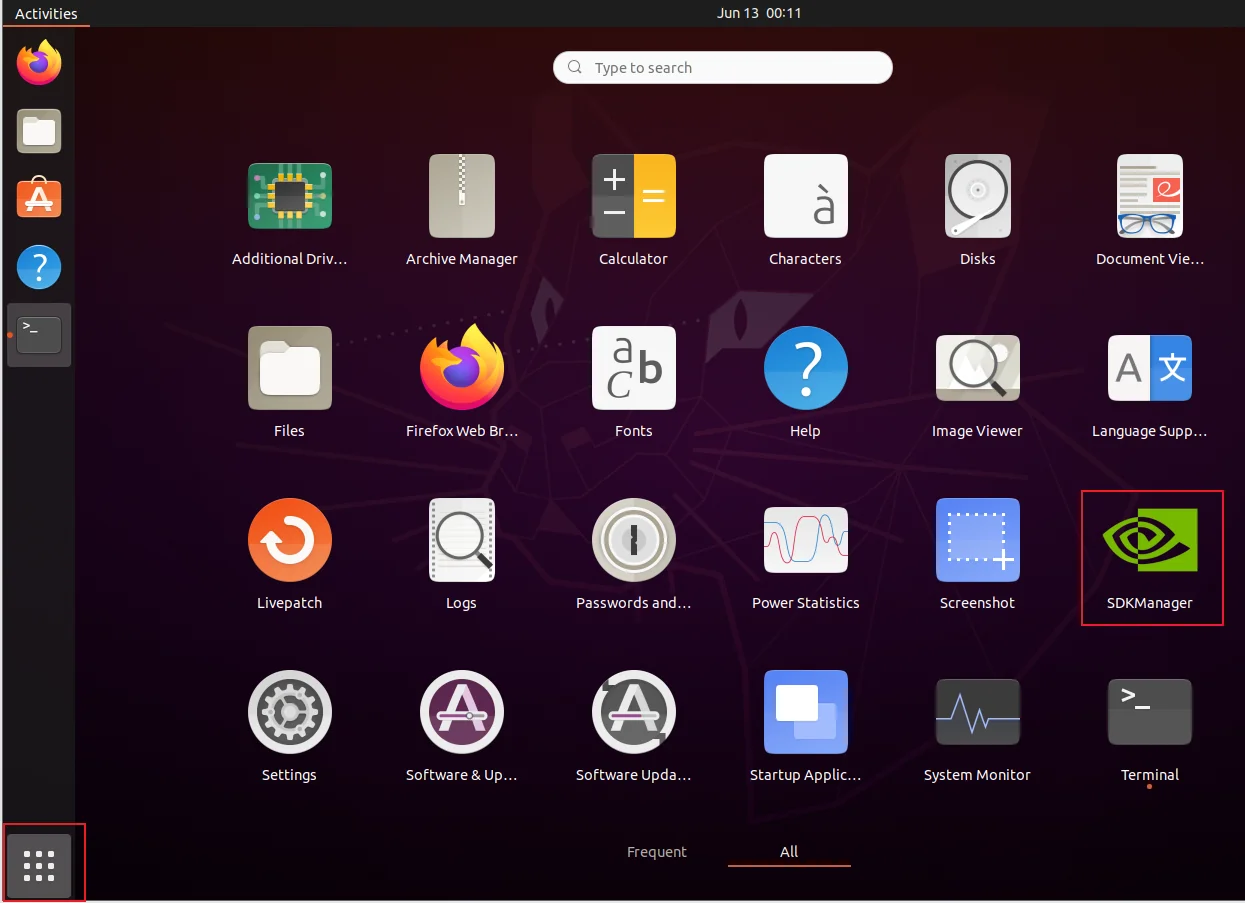
After installation, find and open SDK Manager from the application list.
Log in with your NVIDIA account (register in advance).
Once logged in, you will see the SDK Manager main screen, ready to start flashing.